
Account, Billing, and Privacy
This page explains how to finish account setup, update your profile, manage a team, download a Business Associate Agreement (BAA), adjust privacy settings, and manage billing.
Some options are available only to the team administrator. If you joined Apollo through a team invitation, contact the administrator shown on the My Team page for organization or billing changes.
Complete Account Setup
Apollo guides new users through account setup before opening the dashboard.
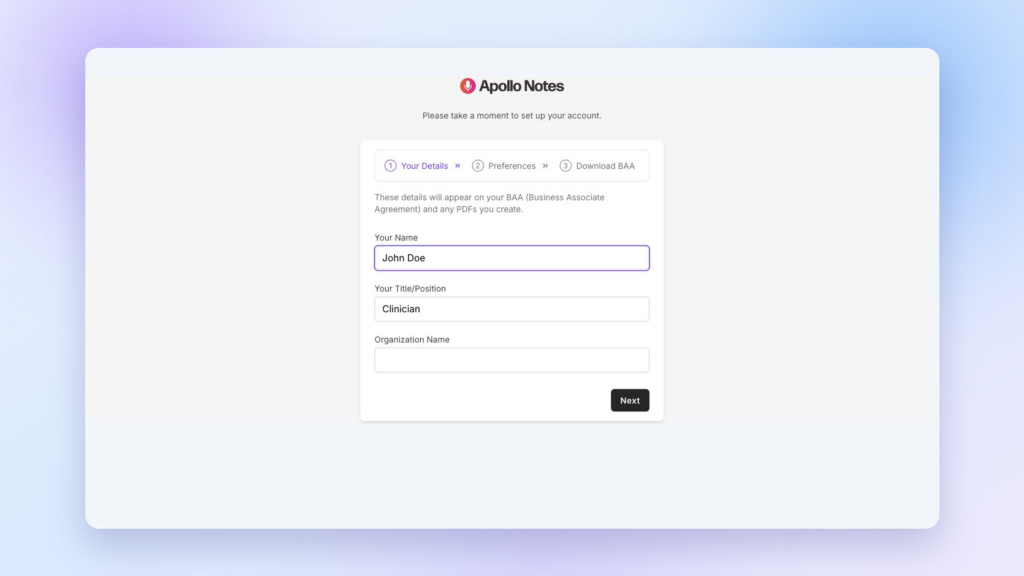
Enter Your Details
On the Your Details step, enter:
- Your Name
- Your Title/Position
- Organization Name
Your name and title are required. The organization name is optional. If you joined an existing team, only the team administrator can change the organization name.
Keep these details accurate because Apollo uses them when preparing your BAA and may include them in PDFs you create.
Choose Your Preferences
On the Preferences step:
- Select your EHR software.
- Choose how Apollo should refer to the therapist.
- Choose how Apollo should refer to the patient or client.
- Turn on Use Common Abbreviations if you want common clinical terms shortened in generated notes.
For example, you can use “Clinician” instead of “Therapist” or “Client” instead of “Patient.” When abbreviations are enabled, Apollo may replace terms with abbreviations such as Dx for diagnosis and Tx for treatment.
The therapist label, patient label, and abbreviation preference become the starting settings for note creation. You can change these options in the note settings sidebar when creating a note. Apollo remembers the latest choices for future notes.
Download or Skip the BAA
The last setup step offers a BAA.
To download it during setup:
- Review your account details.
- Add your signature in the signature box.
- Select Download BAA.
Select Skip if you do not need to download it at that time. You can download a BAA later from My Profile.
Downloading or skipping the BAA completes setup and opens the dashboard.
Update Your Profile
Open My Profile from the sidebar or the account menu.
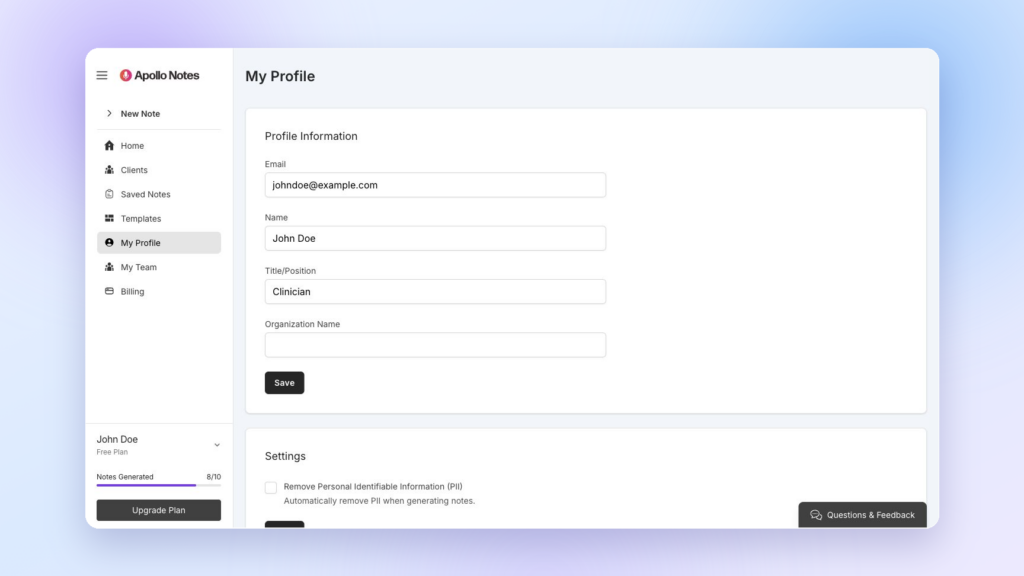
Under Profile Information, you can update:
- Email address
- Name
- Title or position
- Organization name, if you are the team administrator
Select Save after making changes. If you change your email address, Apollo may ask you to verify the new address.
Team members can view the organization name but cannot edit it. The team administrator can update it from either My Profile or My Team.
Change Your Password
On My Profile, find Update Password.
- Enter your current password.
- Enter the new password.
- Enter the new password again to confirm it.
- Select Save.
Use a long, unique password that you do not use for another account.
Download a BAA
Apollo lets you generate and download a signed BAA from My Profile.
Before downloading, confirm that your name, title, and organization are correct under Profile Information. These details are used to prepare the document.
To download a BAA:
- Open My Profile.
- Find Business Associate Agreement (BAA).
- Select Download BAA.
- Add your signature.
- Select Download.
Apollo downloads the document as apollo-notes-baa.pdf.
A BAA is one part of an organization’s privacy and compliance process. Whether you require one, and how it should be reviewed or retained, depends on your organization and applicable requirements.
Manage Your Team
Open My Team from the sidebar or account menu.
What you see depends on your role:
- Team administrators can update the organization name, invite team members, view the member list, and remove members.
- Team members can view the team name and the name and email address of the administrator.
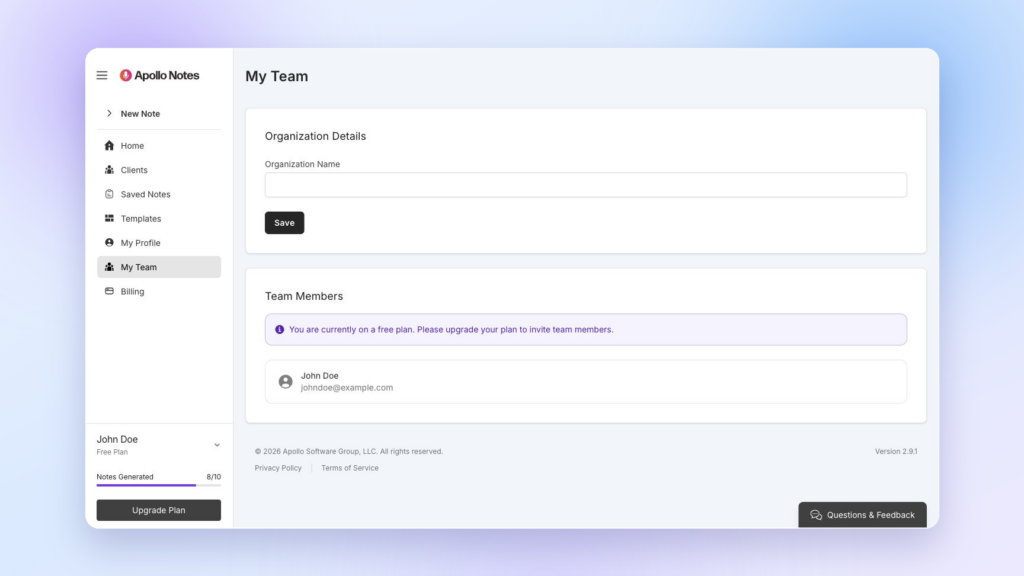
Invite a Team Member
Inviting team members requires a paid plan and administrator access.
To send an invitation:
- Open My Team.
- Select Invite.
- Enter the person’s name and email address.
- Select Send Invitation.
Apollo emails the person a link to create their account and join your team.
Apollo billing is per seat. Inviting a person adds a seat and adjusts the team’s subscription fee. Review the billing portal before inviting someone if you need to confirm the current cost.
Remove a Team Member
Only the team administrator can remove another member.
- Open My Team.
- Find the member.
- Select Delete.
- Confirm the deletion.
Removing a member deletes that user’s account and associated account data and removes a seat from the subscription. The team administrator cannot remove their own administrator account from the team member list.
Remove Personally Identifiable Information
Each user can turn on Remove Personal Identifiable Information (PII) under My Profile > Settings.
When this setting is enabled, Apollo attempts to redact the following information from the source text before generating a note:
- Person names
- Phone numbers
- Street or mailing addresses
- Email addresses
To enable it:
- Open My Profile.
- Under Settings, select Remove Personal Identifiable Information (PII).
- Select Save.
This setting applies to note generation for your user account. It does not change the setting for other members of your team.
Review Redacted and Generated Content
Automated PII detection can miss identifying information or remove text that should remain. It is not a substitute for reviewing the source material and generated note.
Before using a note:
- Check that names, contact details, and addresses were removed when expected.
- Look for other identifying details that may reveal a person’s identity through context.
- Confirm that redaction did not change the clinical meaning of the note.
- Review dates, numbers, diagnoses, medications, risk information, and treatment details for accuracy.
Use initials or non-identifying labels when they are sufficient for the task. Avoid placing unnecessary identifiers in summaries, transcripts, client-specific instructions, custom template instructions, or other source material.
The PII setting is designed to reduce the selected identifiers sent into note generation. It does not remove every possible type of protected or identifying information, and it does not make a document anonymous by itself.
Manage Billing and Plans
Billing is managed for the team rather than for each individual user. Only the team administrator sees Billing in the sidebar and can open the billing portal.
From Billing, the administrator can manage available billing options, including:
- Viewing the current subscription plan
- Choosing or changing a plan
- Updating payment information
- Reviewing payments and invoices
- Cancelling or resuming a subscription when those options are available
The billing portal shows the current plan names, prices, document allowances, and subscription details. Review that page before confirming a billing change.
Upgrade a Plan
The team administrator can upgrade from either:
- Billing in the sidebar
- Upgrade Plan below the note usage counter on a free plan
- Upgrade Plan on the Plan Limit Reached page
Choose the plan in the billing portal and follow the payment steps shown there.
Team members who are not administrators cannot manage the subscription. Ask your team administrator to make the change.
Payment Requires Action
Some card payments require an additional confirmation step. When this happens, Apollo shows Payment requires action near the dashboard heading.
Select Confirm payment and complete the instructions on the payment page. If you cannot complete the payment from that link, the team administrator can open Billing to review the subscription and payment method.
Adding a team seat can also require payment confirmation.
Monthly Note Limits
Apollo plans include a monthly note-generation allowance. The lower-left area of the sidebar shows:
- Your current plan
- The number of notes generated this month
- Your monthly note limit
The counter is tracked for each user. Creating a note increases the counter. The count resets on the first day of each month.
When you reach the limit, Apollo opens the Plan Limit Reached page instead of the note creation page. You cannot generate another note until:
- The monthly counter resets, or
- The team administrator upgrades to a plan with a higher allowance
Only the team administrator can upgrade the plan. If you are a team member, contact the administrator listed on My Team.
Theme and Log Out
Open the account menu at the bottom of the sidebar to change the display theme or log out.
Theme options are:
- Light
- Dark
- Auto, which follows your device preference
Apollo saves the theme to your user account.
Select Log out when you finish using Apollo, especially on a shared device.
Delete Your Account
To permanently delete your own account:
- Open My Profile.
- Find Delete Account.
- Select Delete Account.
- Enter your password.
- Confirm the deletion.
Account deletion permanently removes the account and its associated resources and data. This action cannot be undone. If you are part of a team, deleting your account also removes your seat from the team’s subscription.