
Getting Started

Welcome to Apollo Notes, we are glad to have you on board!
Apollo Notes is an AI-powered voice dictation tool that can turn your rough voice notes into high-quality clinical documentation. It’s designed to save time by quickly generating progress notes, treatment plans, intake notes, and more.
Unlike traditional voice dictation software, Apollo Notes understands the context behind what you are saying. It automatically removes any mistakes (i.e. “umms” and “ahhs”), and can convert natural speech into high-quality clinical writing.
You can dictate or type a summary, upload an image or audio file, or record a full session and let Apollo transcribe it before creating the note.
This page walks through the shortest path to a first usable note and explains the main choices you will see along the way.
What Apollo Notes Does
Apollo creates draft documentation from the information you provide. It can help with:
- Progress notes
- Treatment plans
- Intake notes
- Discharge summaries
- Referral letters
- General correspondence
- Custom templates created by you or your team
For progress notes and supported templates, Apollo can work from either a summary of the session or a full session recording. Summary input is faster when you already know what needs to go in the note. Full session recording is useful when you want Apollo to transcribe the session first, then create the note from that transcript.
Apollo drafts should be reviewed before they are saved, copied, exported, or added to a clinical record. Check clinical details, diagnosis language, risk content, billing or code suggestions, and the treatment plan for accuracy and fit.
Create Your First Note
Start from the dashboard. The dashboard shows the document types you can create, including built-in note types and any custom templates available to your account.
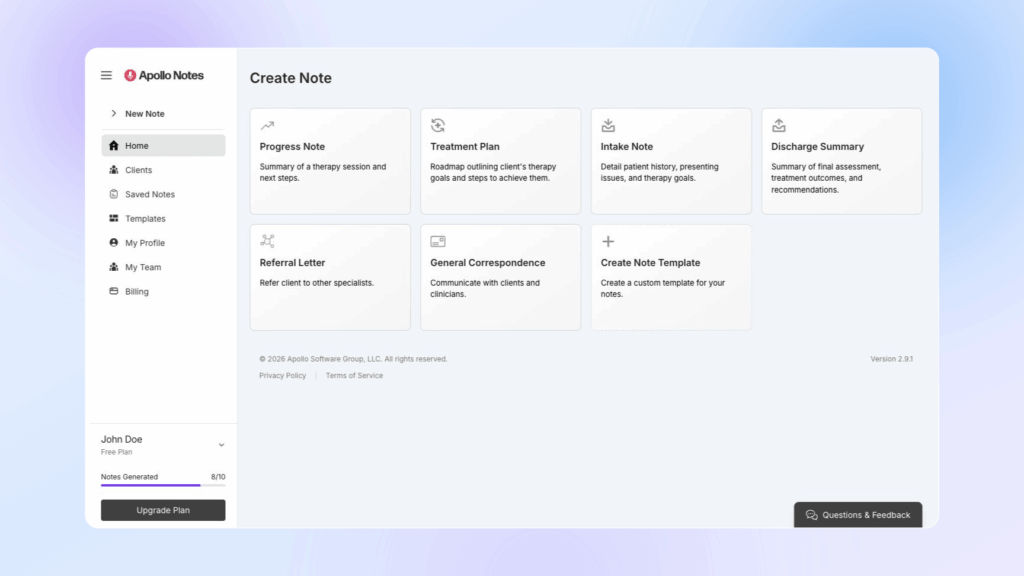
To create a first progress note:
- Choose Progress Note from the dashboard or the sidebar.
- Select a client if you want Apollo to use saved client context.
- Choose a template, such as SOAP, DAP, BIRP, or another available progress note format.
- Choose the session type: Individual, Couple, or Group.
- Set note options such as Medical Codes, Note Length, Use Bulletpoints, Custom Instructions, and Custom Labels if needed.
- Choose how you want to provide the session information.
- Create the note.
- Review and edit the generated draft in the editor.
- Save the note with a name and optional tags.
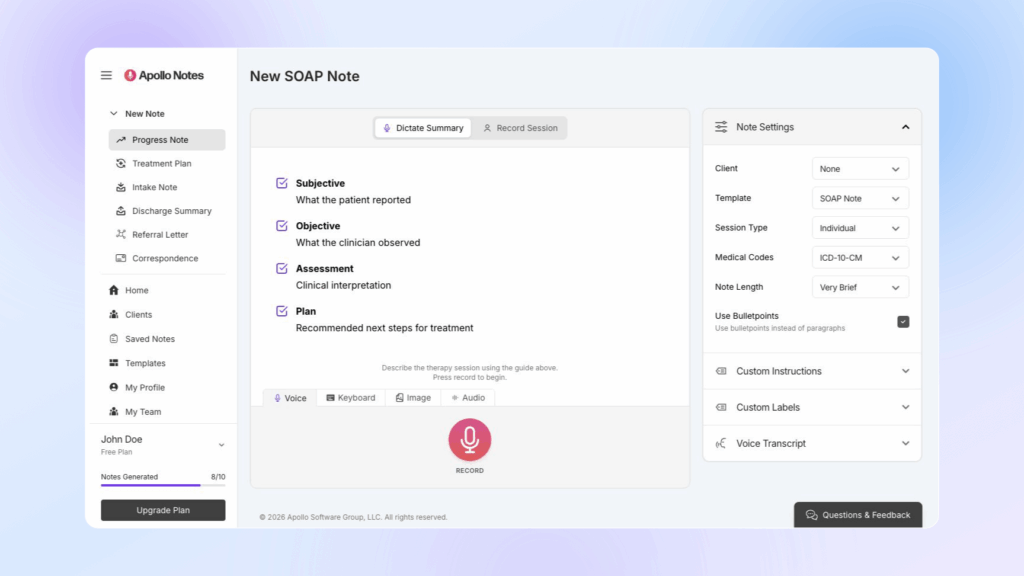
For a simple first note, use Dictate Summary with the Voice or Keyboard tab. Summarize the clinically relevant parts of the session, then select Create Note.
Choose an Input Method
Apollo supports several ways to provide source material. Choose the method that best matches what you already have.
Voice
Use Voice when you want to verbally summarize the session after it ends. Press Record, dictate your summary, pause when finished, then select Create Note.
You do not need to dictate in perfect note format. Speak naturally and include the key clinical details Apollo should use.
Keyboard
Use Keyboard when you prefer to type or paste a summary. This is a good option for short notes, corrected transcripts, or source material you already have in text form.
Image
Use Image when you have handwritten or scanned notes. Upload an image, review the extracted text, edit it if needed, then create the note.
Audio
Use Audio when you have an existing audio file that should be transcribed before Apollo creates the note. After upload and transcription, review the input and create the note.
Record Session
Use Record Session when you want Apollo to capture or process a full therapy session recording. Apollo transcribes the session first, then uses the transcript to generate the note.
Get appropriate consent before recording any therapy session. Follow your professional, legal, workplace, and payer requirements for notice, consent, storage, and use of recordings.
Dictate Summary vs Record Session
Dictate Summary is best when you are summarizing the session yourself after it happens. It supports Voice, Keyboard, Image, and Audio input. This mode is usually the fastest path to a note because you decide what context Apollo should use.
Use Dictate Summary when:
- You want to quickly describe the session in your own words.
- You already have written or dictated source material.
- You want to upload a short audio file or an image of handwritten notes.
- You do not need speaker review or a full transcript workflow.
Record Session is best when you want Apollo to work from a full session recording. You can record from a microphone, capture audio from another browser tab or window for supported telehealth workflows, or select an existing audio recording. Apollo transcribes the audio, shows a speaker review step when needed, and can create multiple notes from one recording in supported couple or group workflows.
Use Record Session when:
- You want a transcript-based note from the full session.
- You need to identify who said what before generating the note.
- You are working with a couple or group session.
- You may need separate notes for different participants.
Record a Full Session
To create a note from a full session recording:
- Choose Progress Note or a supported custom template.
- Switch from Dictate Summary to Record Session.
- Choose Individual, Couple, or Group in the sidebar.
- For Group sessions, enter the number of participants.
- Choose Audio input: Microphone, Browser tab or window, or Select Audio File.
- Press Record for a live recording, or confirm the selected audio file.
- Pause and resume as needed.
- Stop the recording and allow Apollo to transcribe it.
- Review speakers if Apollo asks you to confirm speaker labels or roles.
- Create the note or notes.
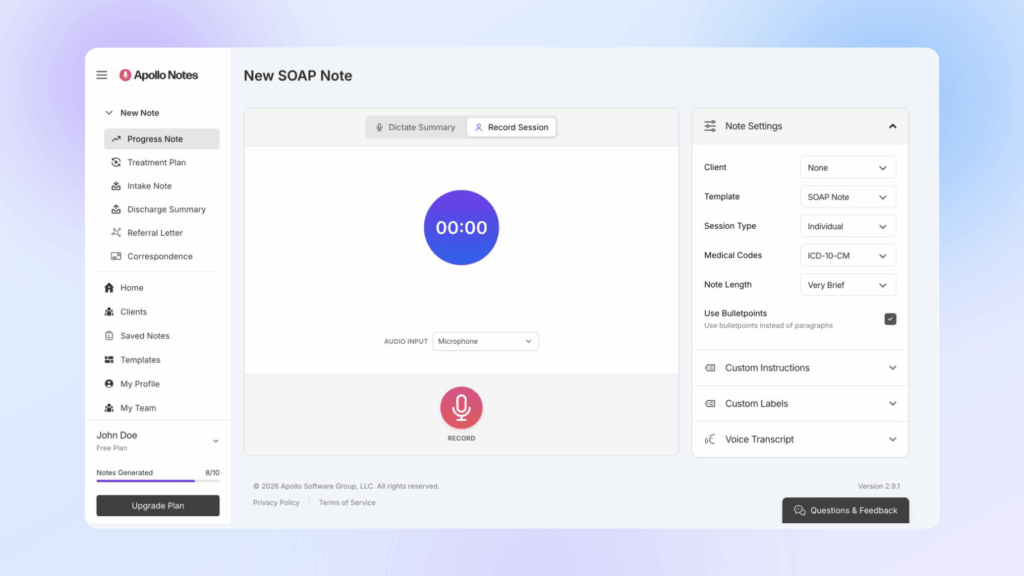
For best results, record in a quiet room, keep the microphone close enough to clearly capture all speakers, and avoid overlapping speech when possible.
Review Speakers
For couple and group recordings, Apollo may show a speaker review step before creating notes. Speaker labels help Apollo understand who said what in the transcript.
During speaker review, you can:
- Rename generic speakers.
- Assign roles such as Therapist, Client, or Other.
- Search transcript turns.
- Play short audio samples for speaker segments.
- Merge duplicate speakers.
- Choose which client speakers should receive generated notes when multiple notes are available.
Check speaker labels carefully before generating notes. Incorrect speaker assignment can affect the content and perspective of the draft.
Review and Edit the Draft
After Apollo generates a note, it opens in the editor.
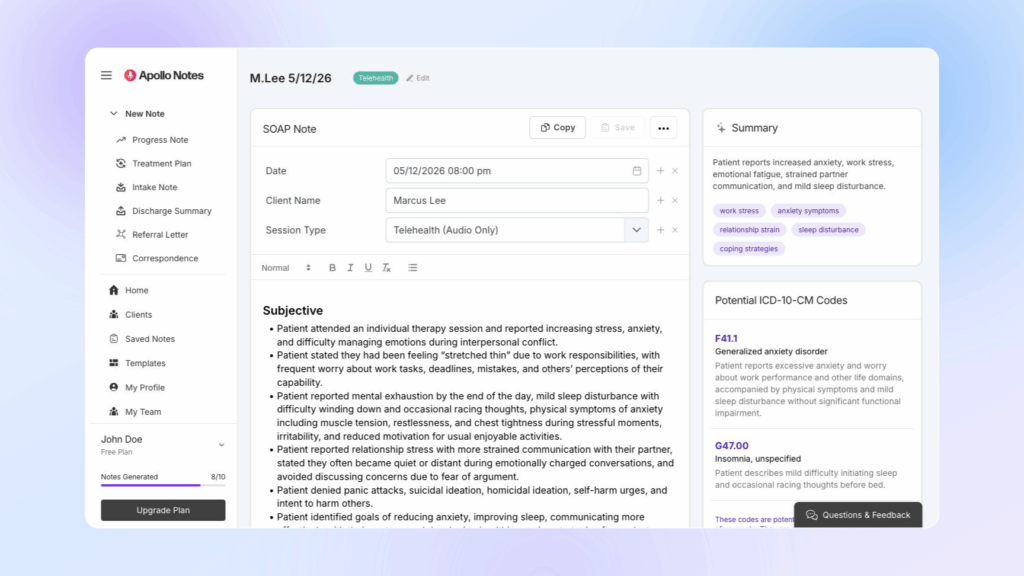
Use the editor to:
- Read the full note.
- Edit the generated text directly.
- Adjust formatting such as headings, bold, italic, underline, and bullet lists.
- Copy the note.
- Regenerate the note if you want Apollo to start over.
- Save the note.
If medical codes or insurance-related panels appear for your note type, review them as suggestions only. Confirm code selection, clinical support, payer requirements, and documentation standards before using them.
Save, Copy, and Export
When the note is ready, select Save. Apollo asks for a note name and lets you add existing tags or create new tags. Tags can help you find related notes later in Saved Notes.
After a note has been generated, the editor also includes a more menu with additional actions. Depending on the note type and source material, you may be able to:
- Download a PDF for standard generated notes.
- Download a Word document for imported Word templates.
- Show the transcript used for the note.
- Download the recording when an audio recording is available.
Use Copy when you want to move the final note text into an EHR or another documentation system.
A Safe First-Note Workflow
For your first few notes, use a simple workflow:
- Choose Progress Note.
- Use Keyboard or Voice under Dictate Summary.
- Provide a concise session summary with the presenting issue, interventions, client response, risk or safety content, diagnosis-relevant details, and plan.
- Generate the note.
- Review the draft against your source material.
- Edit anything that is incomplete, inaccurate, too strong, or not clinically appropriate.
- Save the note with a clear name and tags.
- Copy or export the final version when it is ready for your record.
If you have any questions or need help getting started, please don’t hesitate to contact us.