
Input Methods
Apollo can create notes from several kinds of source material. You can dictate a summary, type or paste text, upload an image of written notes, upload an audio recording, or use Record Session for a full-session transcript workflow.
Choose the input method that matches what you already have. A short, clear summary is often enough for routine documentation. A full session recording is useful when you want Apollo to work from the session transcript and speaker labels.
Choose the Right Input Method
Use Dictate Summary when you are giving Apollo a summary of the session or document. Dictate Summary supports four tabs:
- Voice for recording a spoken summary.
- Keyboard for typing or pasting a summary.
- Image for extracting text from handwritten or printed notes.
- Audio for uploading an existing summary recording.
Use Record Session when you want Apollo to process a full session recording. Record Session can record from your microphone, capture audio from another browser tab or window in supported browsers, or accept an existing audio recording. It is the better choice for longer recordings, multiple speakers, couple sessions, group sessions, and workflows that include speaker review.
For any method, include the information Apollo needs for the selected note type. The guide on the note creation screen shows the sections the selected template expects.
Record With Your Microphone
Use Voice when you want to speak a summary after the session. This is often the fastest method when you already know the clinically relevant details you want in the note.
To dictate a summary:
- Choose the note type or template you want to create.
- Select any note settings, such as Client, Template, Session Type, Medical Codes, Note Length, or Custom Instructions.
- Keep Dictate Summary selected.
- Choose the Voice tab.
- Select Record and dictate your summary.
- Select Pause when you are finished speaking, or select Create Note while recording.
- Select Create Note. Apollo finishes the recording, transcribes it, and then creates the note automatically.
- Review and edit the generated note before saving, copying, or exporting it.
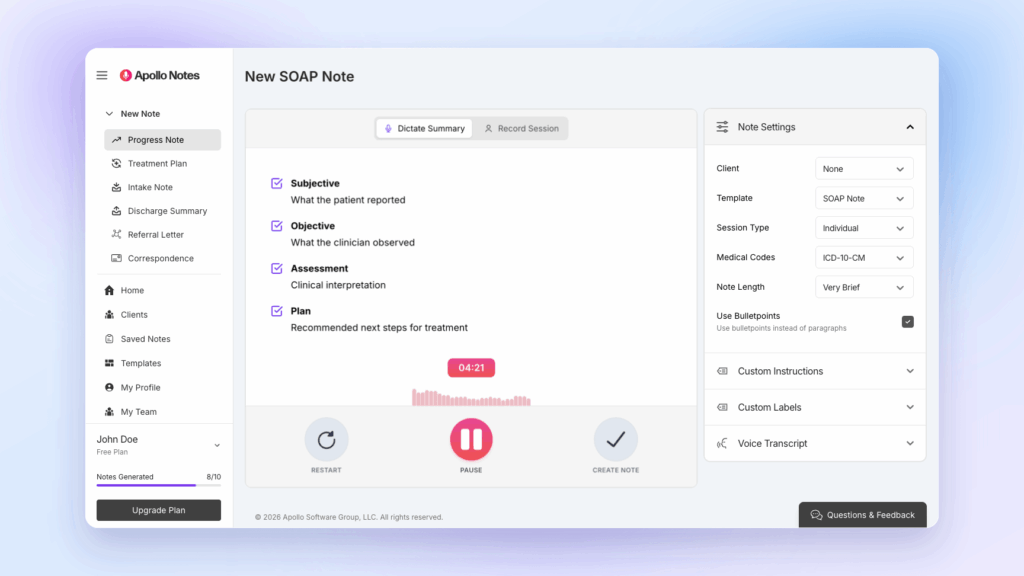
You do not need to dictate in final note format. Speak naturally and include the relevant clinical content. If you miss something, resume recording and add it before creating the note.
If you want to discard the current recording, use Restart. Restart clears the current dictation so you can begin again.
Voice Recording Warnings
While you are recording, Apollo may show warnings if it cannot hear usable microphone audio or if you are approaching the recording limit.
Common messages include:
- No microphone audio has been detected for a period of time.
- Apollo cannot access the microphone input.
- The recording is approaching or has reached its time limit.
If this happens, check the microphone, mute switch, browser permission, headset connection, and input volume. Restart the recording or use another input method if the captured audio is not usable.
Download Dictation Audio
When Apollo has captured audio for a dictated recording, Download audio appears after you pause. Use it if you want a local backup before creating the note, retrying a failed transcription, refreshing the page, or switching workflows.
Type a Summary Manually
Use Keyboard when you prefer to type or paste the source material yourself. This is a good option for brief notes, corrected transcripts, copied source text, or situations where recording is not convenient.
To type a summary:
- Choose the note type or template.
- Select the note settings you need.
- Keep Dictate Summary selected.
- Choose the Keyboard tab.
- Type or paste the summary.
- Select Create Note.
- Review and edit the generated note.
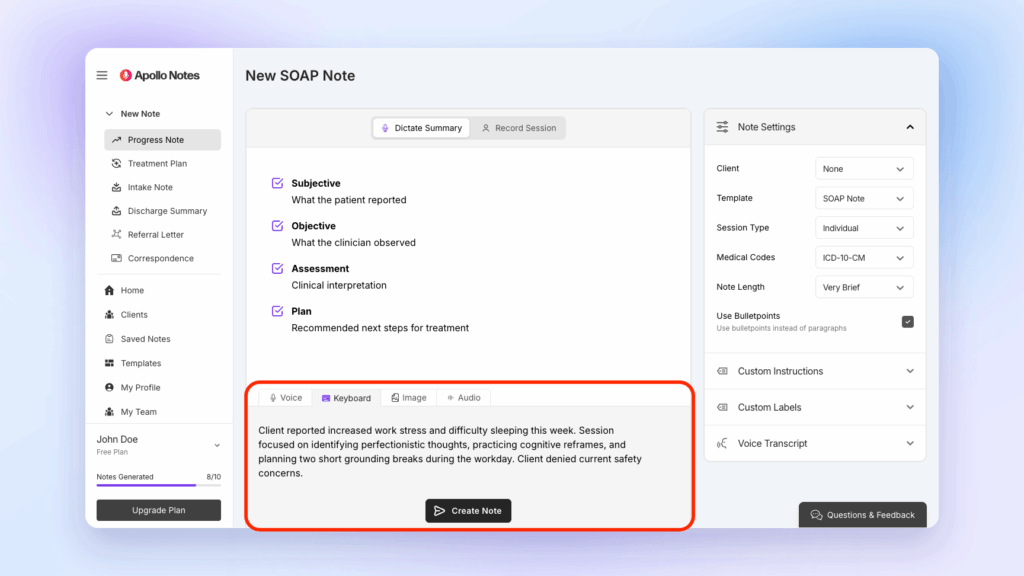
For progress notes, include enough context for Apollo to draft the selected template accurately.
Useful details include:
- Session focus or presenting concern.
- Important client statements or themes.
- Interventions, modalities, or techniques used.
- Client response to interventions.
- Risk or safety content, including relevant denials.
- Diagnosis-relevant symptoms or functional changes.
- Progress toward treatment goals.
- Homework, referrals, follow-up, and next session plan.
A concise summary is fine when it contains the clinical facts Apollo needs. Before saving the draft, verify that the note accurately reflects the session and uses appropriate clinical language.
Upload an Audio File
Use audio upload when you already have a recording and want Apollo to transcribe it before creating the note.
There are two audio upload paths:
- Dictate Summary > Audio is best for a clinician’s summary recording.
- Record Session is best for a full session recording, especially when there are multiple speakers.
The Audio tab supports common audio formats shown in the app: webm, wav, mp3, and ogg.
Upload a Summary Recording
Use this path when the audio is a clinician’s spoken summary, not the full therapy session.
To upload a summary recording:
- Choose the note type or template.
- Select the note settings you need.
- Keep Dictate Summary selected.
- Choose the Audio tab.
- Drag the audio file onto the page, or select the upload area and choose the file.
- Wait while Apollo uploads and transcribes the recording.
- Select Create Note once the transcript is available.
- Review and edit the generated note.
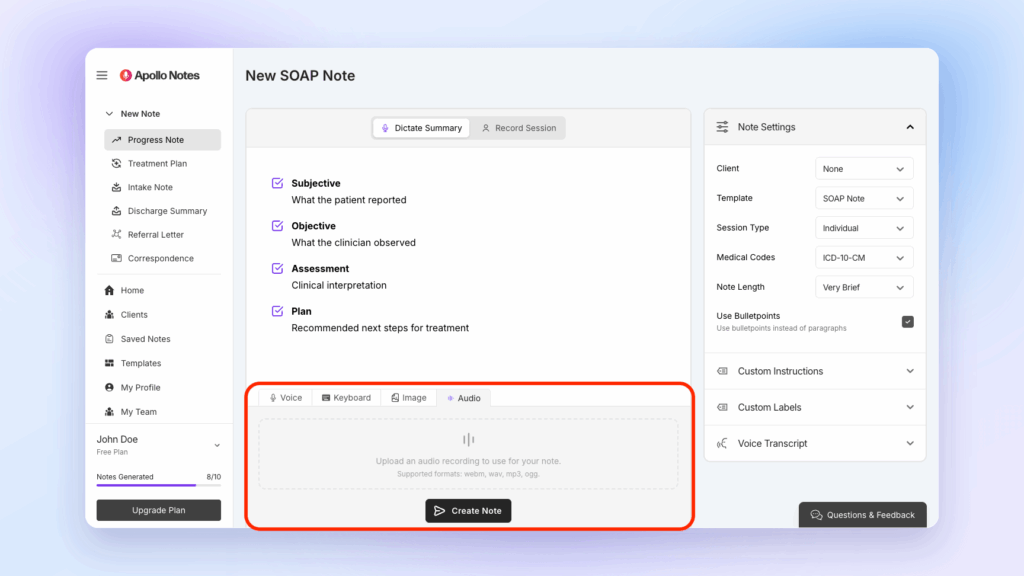
If the transcript is incomplete or inaccurate, consider editing the source text by using Keyboard instead, re-recording a clearer summary, or uploading a better-quality audio file.
Upload a Full Session Recording
Use this path when the file contains the therapy session itself.
To upload a full session recording:
- Choose Progress Note or a supported custom template.
- Switch from Dictate Summary to Record Session.
- Choose the correct Session Type in the settings sidebar.
- For a Group session, enter the number of participants.
- Choose Audio input > Select Audio File, or drag and drop the existing audio recording onto the page.
- Confirm the file and select Generate Note.
- Wait for Apollo to upload and transcribe the recording.
- Review speakers if Apollo asks you to confirm labels or roles.
- Create, review, and save the note or notes.
Get appropriate consent before recording or uploading therapy session audio. Follow your professional, legal, workplace, payer, and client notice requirements for recording, storage, and use.
Upload an Image of Handwritten Notes
Use Image when you have handwritten notes, printed notes, or a scanned note image that you want Apollo to convert to text.
To upload an image:
- Choose the note type or template.
- Select the note settings you need.
- Keep Dictate Summary selected.
- Choose the Image tab.
- Drag an image into the upload area, or select the upload area and choose a file.
- Wait while Apollo extracts the text.
- Review and edit the extracted text.
- Select Create Note.
- Review and edit the generated note.
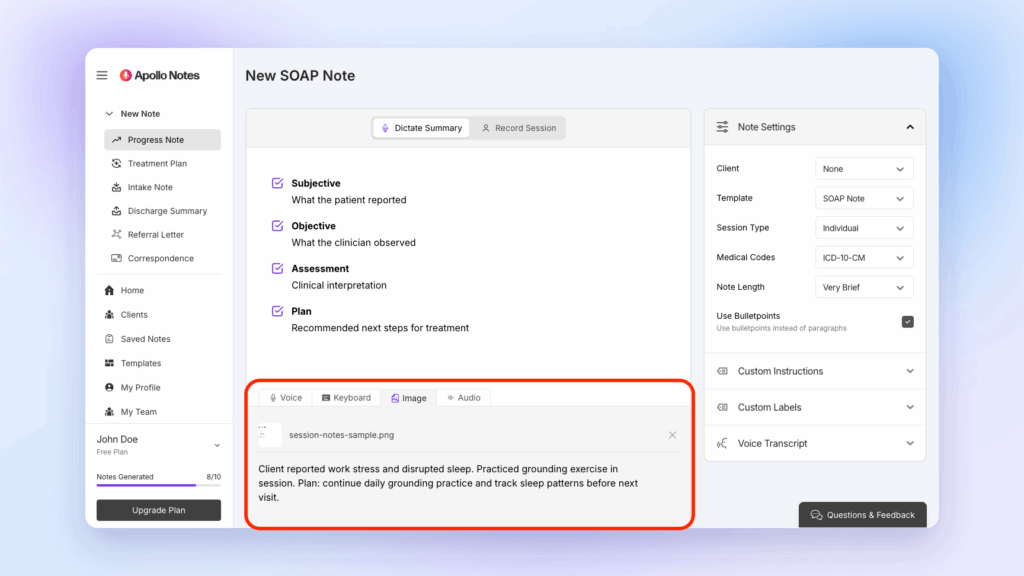
Apollo accepts image files up to 8 MB. If the image is too large, crop or compress it and upload again.
For best results:
- Use a clear, well-lit photo or scan.
- Crop the image to the notes when possible.
- Avoid shadows, blur, glare, and angled photos.
- Keep handwriting as legible as possible.
- Review the extracted text before creating the note.
Image extraction can misread handwriting, abbreviations, dates, numbers, medication names, or clinical terms. Correct the extracted text before generating the note.
Troubleshooting Transcription and Note Generation
If transcription or note generation does not work as expected, use the source material first. Apollo can only draft accurately from the transcript, typed text, or extracted text it receives.
Microphone Permission Problems
If Apollo cannot access the microphone:
- Confirm that the browser has permission to use the microphone.
- Check the operating system microphone permission.
- Make sure the correct microphone or headset is connected.
- Check mute switches, headset buttons, and input volume.
- Try restarting the recording after permissions are fixed.
If the microphone is unreliable, type the summary or upload an audio file instead.
No Microphone Audio Detected
Apollo may warn that no microphone audio has been detected or that it cannot access the microphone. Recording may still be on, but the audio may not be usable.
Try these steps:
- Move closer to the microphone.
- Confirm the microphone is not muted.
- Reduce background noise.
- Pause and resume the recording.
- Restart the recording if you want to start over.
If Download audio is available, save a copy before leaving the page.
Dictation Transcription Failed
If transcription fails after you select Create Note, Apollo displays options to retry or download the audio.
Before refreshing or leaving the page:
- Select Download audio if you want to save a copy.
- Select Retry when your connection is stable.
- If retrying fails, upload the saved audio from the Audio tab when the connection is stable.
Audio Upload Is Slow or Failed
Long recordings and slow connections can take time. Keep the page open while Apollo uploads and transcribes the file.
If upload or transcription fails:
- Check the file format. The app lists webm, wav, mp3, and ogg as supported formats.
- Try again on a stable internet connection.
- Download any available recording backup before leaving the page.
- Use a shorter or clearer recording if the file is very long or noisy.
- Type a summary manually if the transcript cannot be recovered.
Note Generation Is Delayed
After transcription, Apollo may take time to create the note. Do not refresh the page while a note is actively generating.
If generation is delayed:
- Wait for the current request to finish.
- Keep the browser tab open.
- Avoid starting the same note again unless the current attempt clearly failed.
- If an error appears, review any available transcript and retry from the same source material.
Note Generation Timed Out or Failed
If note generation fails, Apollo may show an error with the transcript used for the request. Use the transcript or source material to avoid losing work.
You can:
- Copy the transcript if Apollo shows it.
- Download the audio recording if available.
- Retry note generation.
- Shorten or clarify the source text if it is very long or confusing.
- Contact support if the same source material fails repeatedly.
Transcript Is Incomplete
If the transcript is missing content, check whether the missing information is important for the clinical note. If it is, add it before relying on the draft.
Options include:
- Type missing details into the Keyboard tab and create the note from the corrected summary.
- Re-record a concise summary with the missing information.
- Upload a clearer audio file.
- Use Record Session for full-session audio that needs speaker review.
Always review the final draft against the source material before saving, copying, or exporting it.