
Record Session
Record Session lets Apollo create a progress note from a full therapy session recording. Instead of giving Apollo a short summary, you record the session in Apollo or upload an existing session audio file. Apollo transcribes the recording, separates speakers when possible, and uses the transcript to create the note.
Use Record Session when the session has multiple speakers, when you want Apollo to work from the full transcript, or when a short dictated summary would miss important context.
Get appropriate consent before recording or uploading therapy session audio. Follow your professional, legal, workplace, payer, and client notice requirements for recording, storage, and use.
AI-generated documentation should always be reviewed before it becomes part of the clinical record. Check clinical facts, speaker attribution, risk content, diagnosis language, code suggestions, and the plan for accuracy and fit.
Record a Full Session
To record a session:
- Choose Progress Note or a supported custom template.
- Select the note settings you need, such as Client, Template, Session Type, Medical Codes, Note Length, or Custom Instructions.
- Switch from Dictate Summary to Record Session.
- Choose the correct Session Type: Individual, Couple, or Group.
- For a Group session, enter the No. of Participants.
- Choose Microphone or Browser tab or window from Audio input.
- Select Record when the session begins.
- Pause and resume as needed.
- Select Create Note when you are ready to stop, transcribe, and generate.
- Review speakers if Apollo asks you to confirm who is in the session.
- Review, edit, and save the generated note or notes.
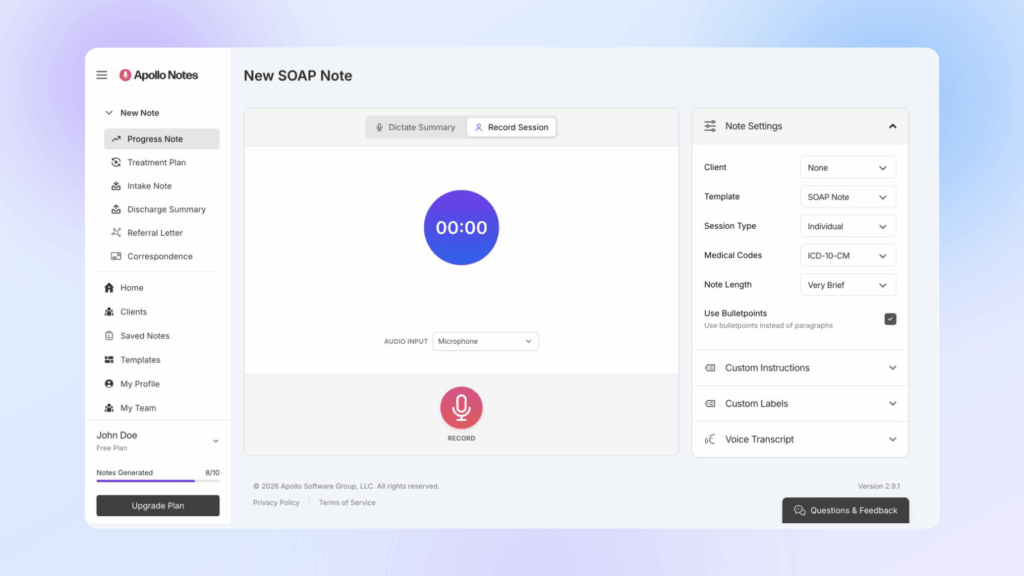
While the session is recording, keep the browser tab open. If you pause the recording, Apollo keeps the current audio and lets you resume before creating the note.
For Individual sessions, Apollo creates one note from the transcribed session. For Couple and Group sessions, Apollo may ask you to review speaker labels before creating notes.
Audio Input
The Audio input menu appears in the Record Session panel before a recording or upload begins.
Choose:
- Microphone to record audio from the microphone or headset selected by the browser.
- Browser tab or window for telehealth or other remote sessions where session audio is playing in another browser tab or window. Apollo asks you to choose what to share, then records that shared audio together with your microphone.
- Select Audio File to choose an existing session recording from your computer. Apollo stages the file in the Record Session panel so you can confirm it before transcription.
The audio input cannot be changed once a recording, upload, transcription, or note generation is in progress. Use Restart if you need to clear the current Record Session work and choose a different input.
Browser tab or window capture is available only in supported desktop Chromium-based browsers, such as Chrome and Edge. When prompted by the browser, choose the tab or window that contains the session audio and make sure audio sharing is enabled. If the capture does not start, use Microphone or upload the session recording instead.
Upload an Existing Session Recording
You can use Record Session even if the session was recorded outside Apollo.
To upload a full session recording:
- Choose Progress Note or a supported custom template.
- Switch to Record Session.
- Confirm the Session Type and Group participant count, if needed.
- Use Audio input > Select Audio File, or drag and drop the audio file onto the Record Session panel.
- Confirm the selected file.
- Select Generate Note.
- Wait while Apollo uploads and transcribes the recording.
- Review speakers if prompted, then create the note or notes.
Use this path for full session audio. If the file is only your spoken summary after the session, use Dictate Summary > Audio instead.
Audio Quality Tips
Clear audio improves transcription and speaker separation.
For best results:
- Place the microphone close enough to capture all participants.
- Reduce background noise, music, fans, and overlapping side conversations.
- Ask participants to speak one at a time when possible.
- Use a headset or external microphone for telehealth sessions when available.
- For telehealth sessions, choose Browser tab or window when the other participant’s audio is playing through another tab or window.
- Avoid placing the microphone near keyboards, papers, or other noise sources.
- Check that the browser has microphone permission before the session starts.
- Keep the device plugged in or charged for longer sessions.
If the transcript is incomplete or speaker labels are confusing, add missing clinical details manually before relying on the generated note.
Review and Assign Speakers
For Couple and Group sessions, Apollo may open Who’s in This Session? after transcription. This step helps Apollo understand who said what before it creates notes.
Apollo may identify speakers with generic labels such as Speaker 1, Speaker 2, and Speaker 3. Review these labels carefully. Speaker labels are used as clinical context, so they should be verified before creating notes.
In speaker review, you can:
- Assign a speaker to a saved client or type a speaker name.
- Choose a role, such as Therapist, Client, Parent, Partner, Observer, or Other.
- Search the transcript by speaker name, label, or transcript text.
- Play short audio samples for transcript turns when audio playback is available.
- Merge duplicate speakers if Apollo split one person into more than one speaker label.
- Choose which client speakers should receive generated notes.
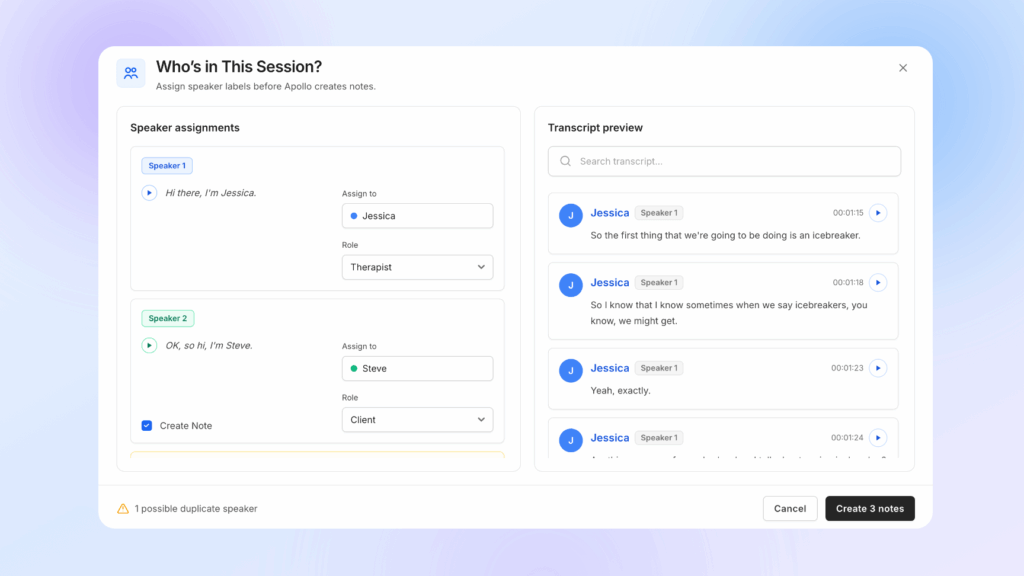
Speaker roles matter. A speaker marked Therapist or Other is not selected for note creation. Client speakers can be selected with Create Note.
Search and Playback
Use the transcript search field when you need to confirm a speaker’s identity. You can search for a generic speaker label, a typed name, or words from the transcript.
If playback controls are available, select a speaker sample or transcript segment to hear that part of the recording. This can help confirm whether Speaker 2 is a client, partner, parent, therapist, or another participant.
Merge Duplicate Speakers
Sometimes transcription may split one person into two speaker labels. Apollo may mark a speaker as a possible duplicate when it is uncertain.
If two labels belong to the same person:
- Select Merge with on the duplicate speaker.
- Choose the correct speaker to merge into.
- Confirm the merge.
- Review the transcript preview again.
Merging moves the duplicate speaker’s transcript turns into the selected speaker. After merging, confirm the speaker name, role, and Create Note selection before continuing.
Couple and Group Sessions
Choose the session type before recording or uploading the session audio.
Use Individual for a session with one client. Apollo expects the therapist and client to be the main speakers.
Use Couple for a session with two client participants. Apollo expects the therapist plus two client speakers. During speaker review, assign each client speaker clearly so notes are created for the correct person or people.
Use Group for group sessions. Enter the expected No. of Participants before recording or uploading audio. Apollo uses this count to help estimate how many speakers should be separated. The group participant count represents client participants, and Apollo accounts for the therapist as an additional speaker.
Examples of roles you might assign include:
- Therapist
- Client
- Partner
- Parent
- Group member
- Observer
- Other
If Apollo detects too many speakers, look for duplicate labels and merge them. If Apollo detects too few speakers, review the transcript carefully for places where two participants may have been combined. You may still be able to create a note, but you should correct the final draft so each client’s content is accurate.
Create Multiple Notes From One Recording
When a Couple or Group session includes more than one client speaker, Apollo can create separate note drafts from the same transcript.
During speaker review:
- Assign each speaker to the correct name or saved client.
- Set the correct role for each speaker.
- Leave Create Note selected for each client who should receive a note.
- Clear Create Note for speakers who should not receive a note.
- Select Create notes.
Apollo creates a separate draft for each selected client speaker. Each draft focuses on that client and uses the other speakers only as session context when clinically relevant.
While the notes generate, Apollo shows each selected client as a draft with its current status. If one draft fails, the other drafts may still complete. Review any failed draft status before retrying.
After generation, use the draft tabs to switch between notes. Each draft can be reviewed, edited, regenerated, saved, tagged, copied, or exported separately.
Before saving, check that each note contains only the appropriate client’s clinical content. Remove another client’s private details unless they are clinically necessary and appropriate for that note.
Troubleshooting Record Session
If Apollo cannot access the microphone, check browser microphone permission, operating system permission, headset connection, mute switches, and input volume.
If browser tab or window capture fails, choose the tab or window again and confirm that shared audio is enabled in the browser prompt. If the browser does not support tab or window audio capture, use Microphone or upload an audio file instead.
If transcription fails after recording, Apollo may offer Download audio and Retry transcription. Download the audio before leaving the page if you need a local backup.
If upload or transcription is slow, keep the tab open and wait for the current step to finish. Long recordings and slower connections can take time.
If note generation fails after transcription, review any available transcript and try again. For very long or unclear recordings, consider creating a shorter typed or dictated summary from the important clinical details.