
Templates
Templates let you create repeatable note and document formats in Apollo. Use them when you often need the same headings, fields, wording style, or Word document layout.
There are two template types:
- Editor templates: templates you build directly in Apollo with note sections and subsections.
- Word document templates: templates you import from a Word document so Apollo can fill fields into the original document format.
Review all AI-generated template content before saving, copying, exporting, or adding it to a clinical record. Templates help Apollo follow a structure, but you are still responsible for confirming that the final note or document is accurate.
Open Templates
Open Templates from the sidebar to view your template list.
The Templates page shows:
- Name: the template name.
- Source: whether the template was created in the Apollo editor or imported from a Word document.
- Actions: create a note, edit the template, or delete the template.
You can search templates by name. Use Sort by to change the list order. Available sort options include:
- Name A-Z
- Name Z-A
- Recently updated
- Oldest updated
Apollo remembers your selected template sort preference for future visits.
Choose a Template Type
Choose Create From Scratch when you want Apollo to generate a note inside the standard Apollo editor. This works well for clinical notes that need a consistent structure, such as a treatment plan, consultation summary, assessment outline, or custom progress note format.
Choose Use Word Document when you need Apollo to fill a specific Word document layout. This works best for forms, agency documents, school forms, treatment plan documents, or other templates where the final file should keep the original Word formatting.
Create a Template From Scratch
To create an editor template:
- Open Templates from the sidebar.
- Select Create.
- Select Create From Scratch.
- Enter a template name.
- Add optional instructions for Apollo.
- Add note sections.
- Add subsections under each section, if needed.
- Drag sections to reorder them.
- Select Save.
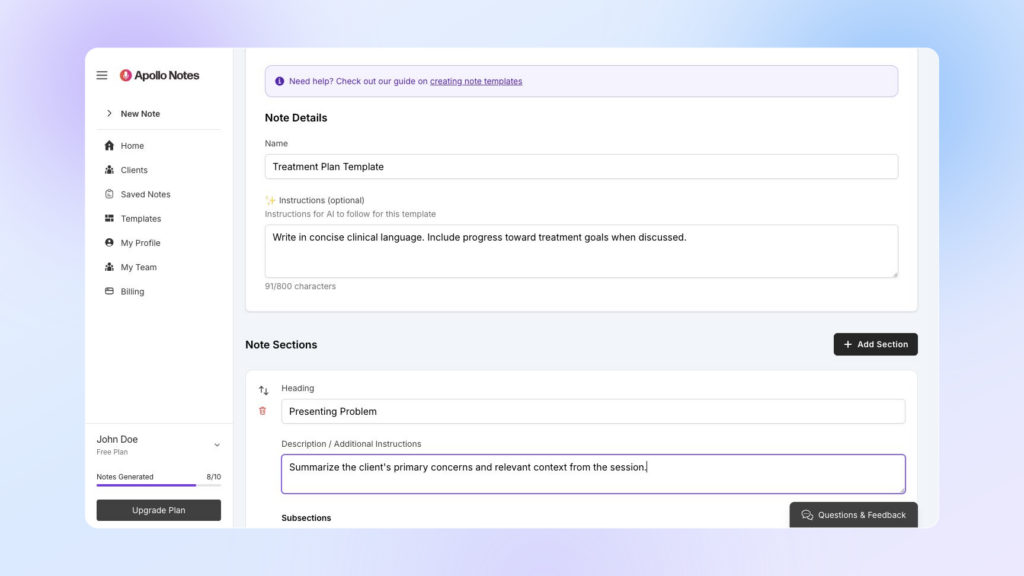
Name the Template
Use a clear name that describes the document or note format. Examples:
- Treatment Plan
- Intake Summary
- Couples Session Note
- Discharge Summary
- School Consultation Note
The template name appears on the dashboard, the Templates page, and the note editor.
Add Template Instructions
Use Instructions for short guidance that applies to the whole template.
Helpful instructions are specific and brief. For example:
- Write in concise clinical language.
- Use “client” instead of the client’s name.
- Include progress toward treatment goals when discussed.
- Use common therapy abbreviations when appropriate.
Avoid long or conflicting instructions. Very long instructions can make the generated note less reliable.
Add Sections and Subsections
Editor templates are built from sections and optional subsections.
A section is a main heading in the generated note. Each section includes:
- Heading: the section name.
- Description / Additional Instructions: guidance for what Apollo should include in that section.
A subsection is a smaller field under a section. Use subsections when you want Apollo to fill specific parts of a section separately.
For example, a treatment plan template might include:
- Presenting Problem
- Goals
- Objectives
- Interventions
- Plan
Keep section descriptions practical. Tell Apollo what belongs in the section, not every possible way the section could be written.
Reorder or Remove Sections
Use the drag handle beside a section to move it up or down.
Use the delete icon beside a section or subsection to remove it. Apollo asks you to confirm deletion when the section already has content.
Use an Editor Template
You can start a note from an editor template in two places:
- From the dashboard, select the template tile.
- From Templates, select Note next to the template.
Apollo opens the note creation page with that template selected. Choose your input method, add the session summary, dictation, upload, or recording, then generate the note.
After generation, review the note in the editor. You can edit the text, copy it, or save it like other Apollo notes.
Import a Word Document Template
Word document templates let Apollo fill fields into your own document format and then download the completed document as a .docx file.
To import a Word document template:
- Open Templates from the sidebar.
- Select Create.
- Select Use Word Document.
- Upload the Word document.
- Wait while Apollo detects the fields in the document.
- Review the template name, instructions, and detected fields.
- Adjust field labels, field types, required fields, defaults, and repeating fields as needed.
- Select Save.
When the template is saved, it appears on the Templates page with Word Doc as the source.
Prepare a Word Document Template
Before uploading, add placeholders to the Word document anywhere Apollo should insert content.
Use double curly braces around each placeholder:
{{ clientName }}
{{ diagnosis }}
{{ treatmentGoals }}
Placeholder names should be short and descriptive. Apollo turns them into editable fields after upload.
Helpful placeholder tips:
- Use one placeholder for each field Apollo should fill.
- Use names that describe the content, such as
presentingConcern,interventions, ornextSteps. - Avoid duplicate placeholders unless the same value should appear in more than one place.
- Keep punctuation and labels outside the placeholder when possible.
For example:
Primary diagnosis: {{ diagnosis }}
Treatment goals: {{ treatmentGoals }}
Repeating Lists
Use repeating fields when the document needs a list of items, such as goals, symptoms, interventions, or recommendations.
Apollo can detect some repeated placeholder patterns and mark them as repeating fields. After upload, review the detected fields and turn on Repeating field for any field that should allow multiple items.
When you generate a note from a Word document template, repeating fields appear as editable list-style fields. You can add or remove items before downloading the completed document.
Structured Fields
Some Word templates need grouped rows, such as a treatment plan table with a goal, objective, intervention, and target date for each row.
When Apollo detects a grouped structure, it displays the parent field with child fields. In the generated note editor, structured fields appear as rows with editable subfields. You can add or remove rows as needed.
Structured fields work best when the Word document uses consistent placeholder names for each row or group.
Review Detected Fields
After upload, Apollo shows the fields it found in the document.
For each field, you can review or edit:
- Field name: the label shown in Apollo.
- Type: text, date, or number.
- Required field: whether the field should be treated as required.
- Default value: optional text Apollo can use when no generated value is available.
- Instructions: short field-specific guidance.
- Repeating field: whether the field should support multiple items.
Field instructions should be brief. Use them to clarify what belongs in the field, such as “include only measurable goals” or “use MM/DD/YYYY format.”
Use a Word Document Template
You can start a note from a Word document template in two places:
- From the dashboard, select the template tile.
- From Templates, select Note next to the template.
Apollo opens the note creation page with the Word document template selected. Add your source information, then generate the document.
When generation is complete, Apollo shows the detected template fields in the editor instead of a standard free-text note. Review each field carefully. You can edit field values manually before saving, copying, or downloading the document.
Get Field Suggestions
For Word document templates, Apollo may offer Get suggestions for individual fields after a document has been generated from transcript or source text.
Use suggestions when a field needs a different phrasing or a more focused value. Suggestions are based on the transcript or source information for the current note and the surrounding template fields.
To use a suggestion:
- Open the field options menu.
- Select Get suggestions.
- Review the suggestions.
- Choose a suggestion to apply it, or close the suggestions and edit the field manually.
Suggestions are starting points. Review the selected wording for clinical accuracy, completeness, and fit with your documentation requirements.
Download a Completed Word Document
When a generated note uses a Word document template, the editor includes a Word download button.
To download the completed document:
- Generate the note from the Word document template.
- Review and edit the template fields.
- Select Word in the note editor.
- Apollo downloads a completed
.docxdocument using the original template layout.
The downloaded document uses the current field values in the editor. If you change a field after downloading, download the Word document again to include the latest edits.
Edit a Template
To edit a template:
- Open Templates.
- Find the template.
- Select Edit.
- Make your changes.
- Save the template.
Editing a template changes future notes created from that template. It does not automatically rewrite notes or documents you already generated.
For Word document templates, editing lets you review the detected field settings. If the underlying Word document layout needs to change, create a new Word document template from the updated file.
Delete a Template
To delete a template:
- Open Templates.
- Find the template.
- Select Delete.
- Confirm the deletion.
Deleting a template cannot be undone. Notes you already saved remain available, but the deleted template will no longer be available for new notes.
Template Tips
Templates work best when they are focused and easy to review.
Helpful habits:
- Use a separate template for each major documentation format.
- Keep AI instructions short and specific.
- Use section names that match the final note or document.
- Review generated content before copying, saving, or exporting.
- Update templates when your documentation requirements change.
Avoid using templates that force Apollo to infer information that was not included in the current note input. The current session summary, dictation, upload, or recording should still include the clinically relevant details Apollo needs for the note.