
Clients
Client profiles help Apollo keep useful background context connected to the notes you create for a specific client. A profile can include the client’s intake assessment, treatment plan and goals, and client-specific instructions for note generation.
Open Clients
Open Clients from the sidebar to view your active client list. Archived clients are kept separately and do not appear on this page.
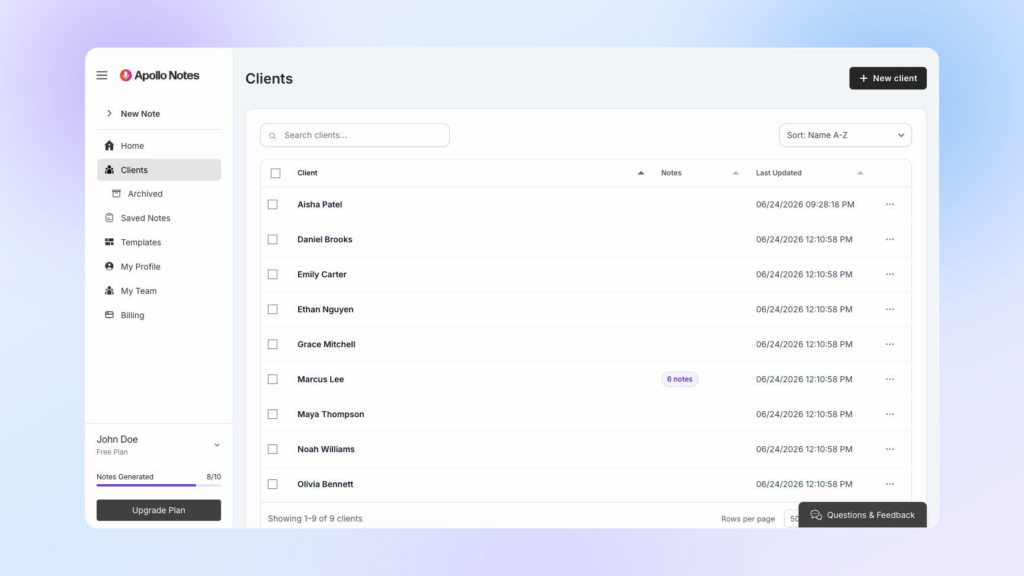
The Clients page shows:
- Name: the client name or identifier.
- Notes: the number of saved notes connected to the client.
You can search clients by name or identifier. Use Sort by to change the list order. Available sort options include:
- Name A-Z
- Name Z-A
- Recently updated
- Most notes
- Fewest notes
Apollo remembers your selected client sort preference for future visits.
Create a Client Profile
To create a client profile:
- Open Clients from the sidebar.
- Select New.
- Enter the client’s name or identifier.
- Add any available intake assessment details.
- Add the treatment plan and goals.
- Add client-specific custom instructions, if needed.
- Select Create.
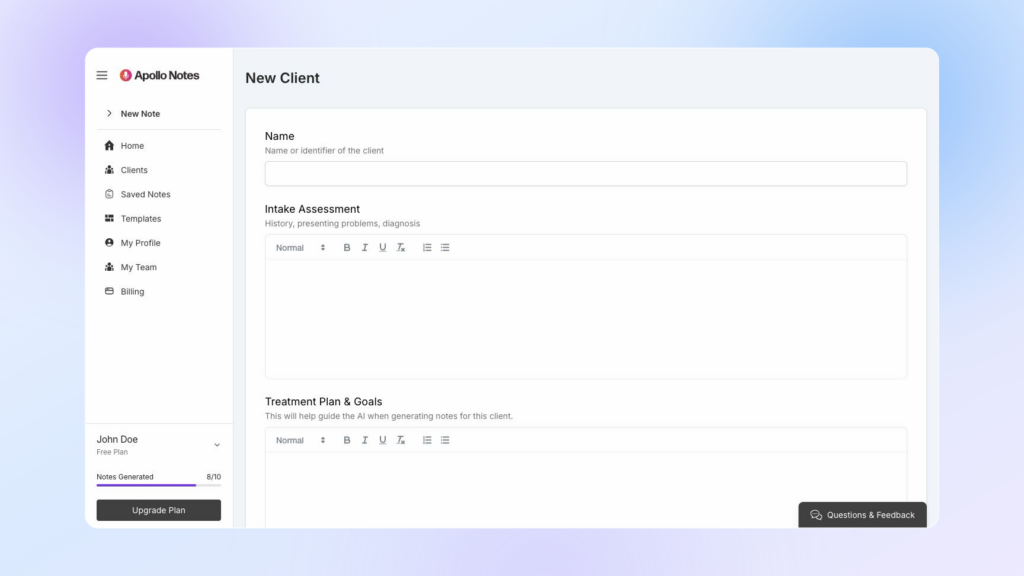
After the profile is created, Apollo opens the client profile page.
Add Client Details
A client profile includes three main context areas.
Intake Assessment
Use Intake Assessment for stable background information that helps Apollo understand the client. This may include:
- Presenting concerns.
- Relevant history.
- Diagnoses or diagnostic impressions.
- Initial clinical formulation.
- Important risk history, when clinically relevant.
Keep this section concise and current. Avoid adding every detail from the full intake if only a few items are useful for future notes.
Treatment Plan & Goals
Use Treatment Plan & Goals for the clinical direction of care. This may include:
- Current treatment goals.
- Objectives or progress markers.
- Planned interventions.
- Session focus areas.
- Discharge or step-down criteria, if relevant.
This section can help Apollo align progress notes with the ongoing plan of care. Update it when goals change, are completed, or are no longer clinically relevant.
Custom Instructions
Use Custom Instructions for short client-specific guidance that Apollo should follow when generating notes for this client.
Helpful examples:
- Always mention SI/HI risk monitoring when it was assessed.
- Track progress toward the client’s exposure hierarchy.
- Use “caregiver” instead of a family member’s name.
- Note homework completion when discussed.
- Avoid naming the client’s workplace.
Keep custom instructions brief and specific. This field has a shorter limit than the intake and treatment plan fields, so use it for guidance rather than long clinical history.
Keep Client Context Useful
Client context works best when it is accurate, current, and focused on information that should influence future notes.
Helpful client context usually includes:
- Active diagnoses or clinical impressions.
- Current goals and interventions.
- Important risk considerations.
- Ongoing themes that often appear in treatment.
- Documentation preferences that apply to this client.
Avoid putting outdated or irrelevant information in client context, such as:
- Old diagnoses that no longer apply.
- Past goals that are no longer being treated.
- Details from one session that should not guide future notes.
- Speculation that has not been clinically assessed.
- Instructions that conflict with your documentation requirements.
If a generated note includes client history that does not fit the current session, edit the note and update the client profile so future notes have better context.
Use a Client When Creating a Note
When creating a note, use the Client setting in the note sidebar to connect the note to a client profile.
Only active clients are available for selection. To select a client:
- Start creating a note.
- Open Note Settings in the sidebar.
- Select the Client field.
- Search for and select the client.
- Review the client’s intake assessment, treatment plan, and custom instructions.
- Select Continue.
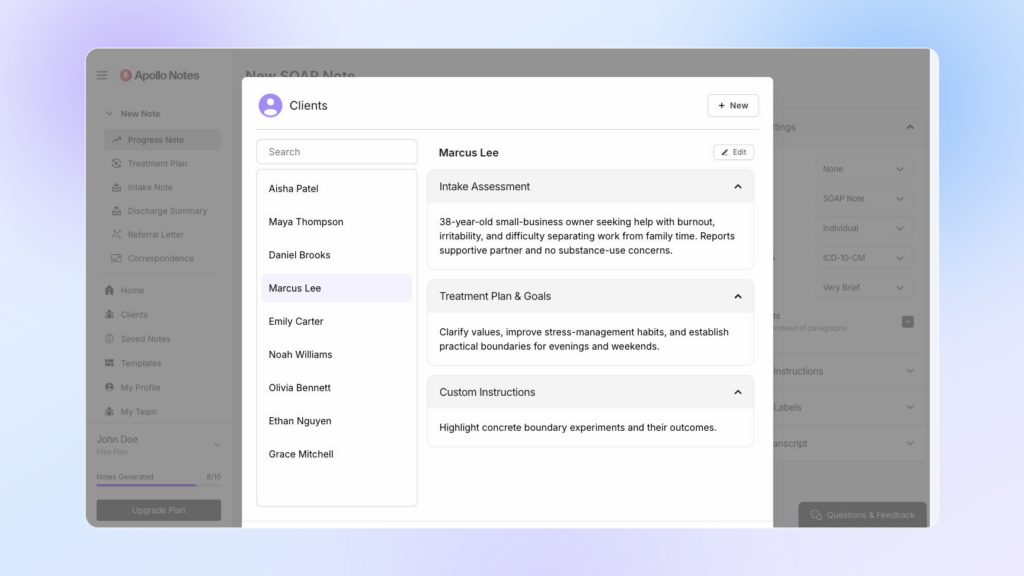
When a client is selected, Apollo can provide the client’s intake assessment, treatment plan and goals, and custom instructions to the note generator. This can help the note reference ongoing goals, clinical history, risk considerations, and documentation preferences.
To remove the selected client before generating the note, use the x in the Client field.
Start a Note from a Client Profile
You can also start a progress note from the client profile page.
To start a note from a client profile:
- Open Clients.
- Select the client.
- Select New Note.
Apollo opens a new progress note with that client already selected. You can still choose the note input method, template, length, formatting, and other note settings before generating the note.
You cannot create a new note for an archived client. Restore the client first if you want to create another note for them.
Link Clients During Session Recording Review
When Apollo asks you to review speakers from a recorded session, you may be able to assign a speaker to an existing client.
Use this when a recording includes one or more clients and you want Apollo to create or organize individual progress notes for selected client speakers. Assigning a speaker to a client can:
- Rename the speaker label to the client name or identifier.
- Mark that speaker’s role as Client.
- Connect the generated note to that client profile.
Review speaker labels before generating notes. Speaker detection can be imperfect, especially with overlapping speech, similar voices, background noise, or multiple participants.
View a Client Profile
Open Clients, then select a client name or choose View. To view an archived client’s profile, open Archived under Clients in the sidebar first.
The client profile page includes:
- The client name or identifier.
- Intake assessment.
- Treatment plan and goals.
- Custom instructions.
- Saved notes for that client.
- A New Note button for starting a progress note.
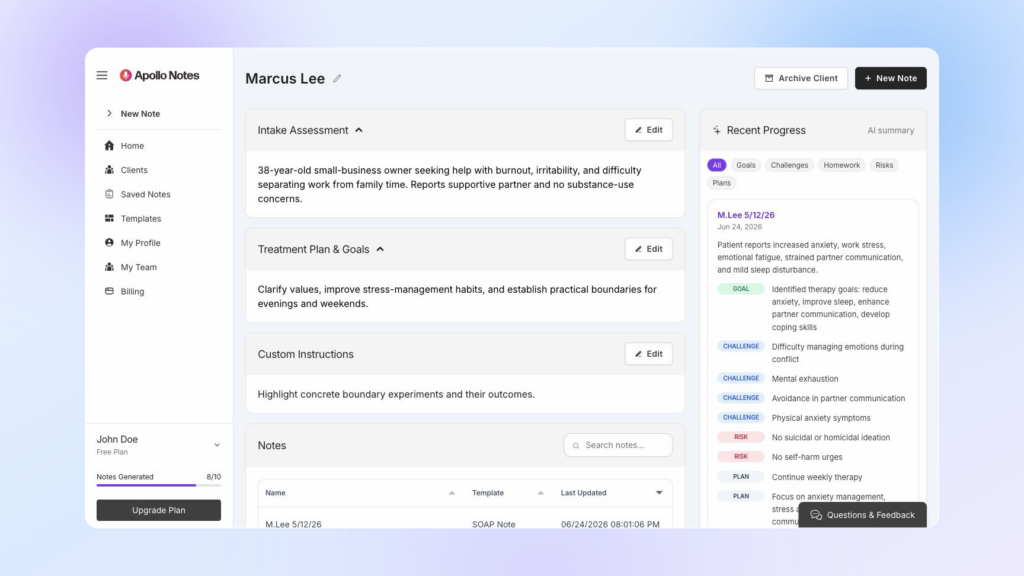
Long intake and treatment plan sections may appear collapsed at first. Select a section to expand it.
Edit Client Details
You can edit client details from the client profile page.
From the client profile page:
- Open the client profile.
- Select the pencil icon next to the client name to rename the client.
- Select Edit next to Intake Assessment, Treatment Plan & Goals, or Custom Instructions.
- Make your changes.
- Select Save.
If you change your mind while editing a section, select Cancel before saving.
View Client Note History
Saved notes linked to the client appear in the Notes section of the client profile.
The notes table shows:
- Name: the saved note name.
- Template: the template used for the note.
- Last Updated: when the note was most recently saved.
Use the search field in the Notes section to find notes by name or template. Select a note row to open that saved note in the editor.
Only notes saved with that client selected appear in the client’s note history. If a note was saved without a client, it remains available under Saved Notes, but it will not appear on a client profile.
Archive Clients
Archive clients you are no longer actively working with to keep the main Clients page and client selection lists focused. Archiving does not delete the client profile or its existing notes.
To archive one client from their profile:
- Open Clients.
- Select the client.
- Select Archive Client.
- Confirm the archive.
To archive one or more clients from the Clients page:
- Select the checkbox next to each client you want to archive.
- Select Archive Selected.
- Confirm the archive.
Archived clients do not appear on the active Clients page or in client selection fields, and you cannot create new notes for them. Their profile details and existing saved notes remain available under Archived.
Restore Archived Clients
Open Archived under Clients in the sidebar to view archived clients. You can search, sort, view, and restore clients from this page.
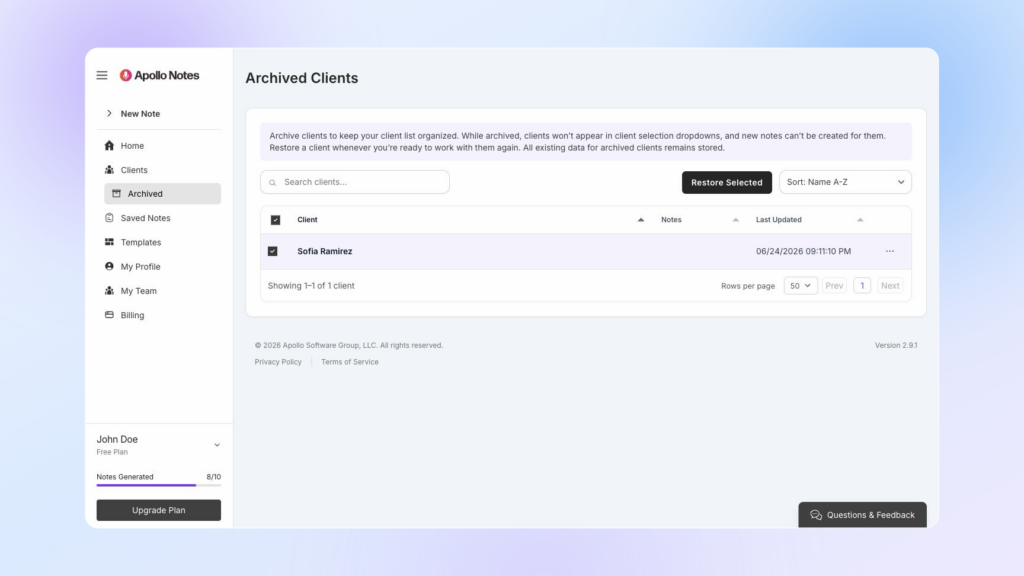
To restore one or more clients:
- Select the checkbox next to each client you want to restore.
- Select Restore Selected.
- Confirm the restore.
You can also open an archived client profile and select the x in the Archived label. Restored clients return to the active Clients page and become available when selecting a client or creating a new note.
Delete a Client
To delete a client:
- Open Clients.
- Find the client.
- Select Delete.
- Confirm the deletion.
Apollo does not allow you to delete a client that has existing saved notes. This protects the connection between saved notes and the client profile.
If you no longer actively work with a client, archive the client instead. Their saved notes remain connected, and you can restore the client later if needed.