
Using the ‘Clients’ section
The Clients section helps you keep client context organized in Apollo Notes, and use that context to guide the AI when generating notes. It’s designed to make your documentation more consistent over time by keeping important “golden thread” details (intake history, treatment goals, risk flags, etc.) close at hand.
What the Clients section is for
The Clients section is a home for information you want to re-use across notes, such as:
Name / identifier
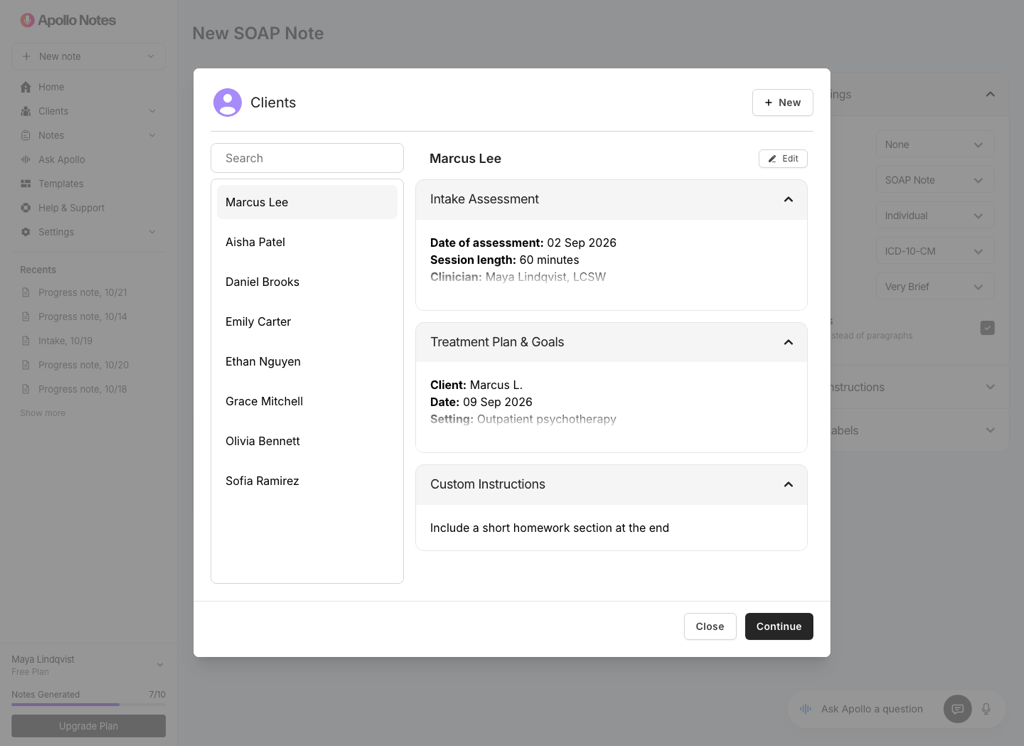
Intake Assessment: history, presenting concerns, diagnoses, important background
Treatment Plan & Goals: goals/objectives and ongoing focus areas
Custom Instructions: short, client-specific guidance for the AI (for example: “Always include SI/HI risk monitoring.”)
When you generate a note with a client selected, Apollo Notes can securely provide that client context to the AI, keeping the note aligned with the client’s history and plan.
Where to find Clients
You’ll see Clients in the left navigation sidebar.
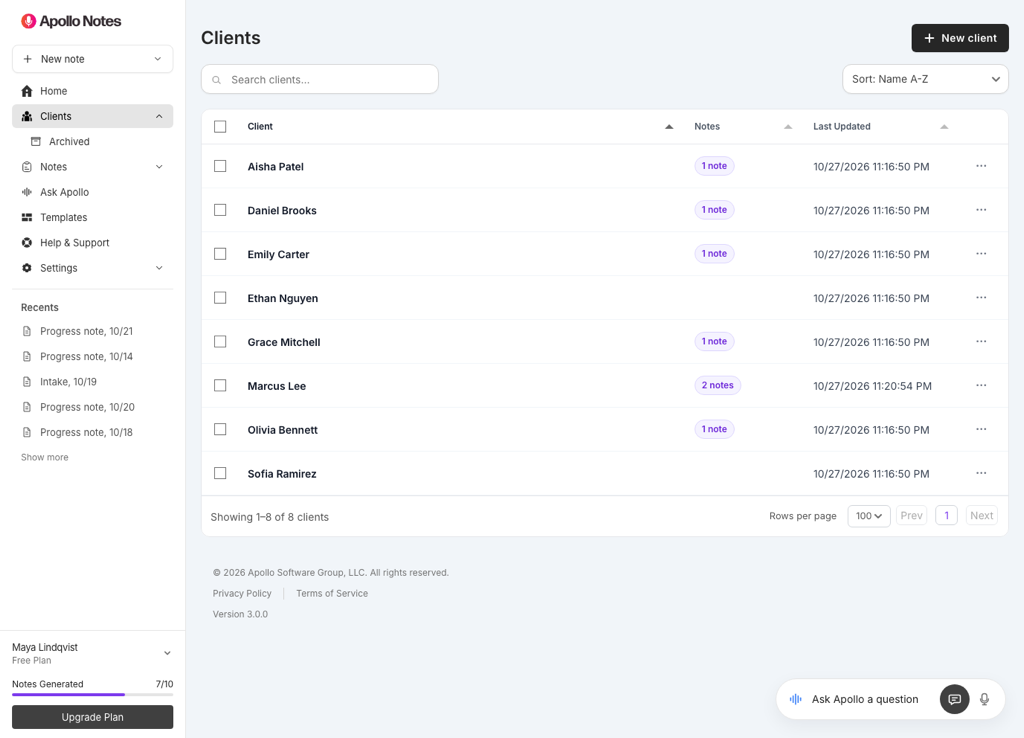
From there, you can:
View your client list
Create a new client
Open a client to view or update details
Viewing and searching clients
The client list shows:
Client name / identifier
A Notes count (how many saved notes are linked to that client)
A Last Updated date and time
You can click a client’s name to open their profile, and use the search box to quickly filter by name.
Creating a client
Go to Clients in the left sidebar.
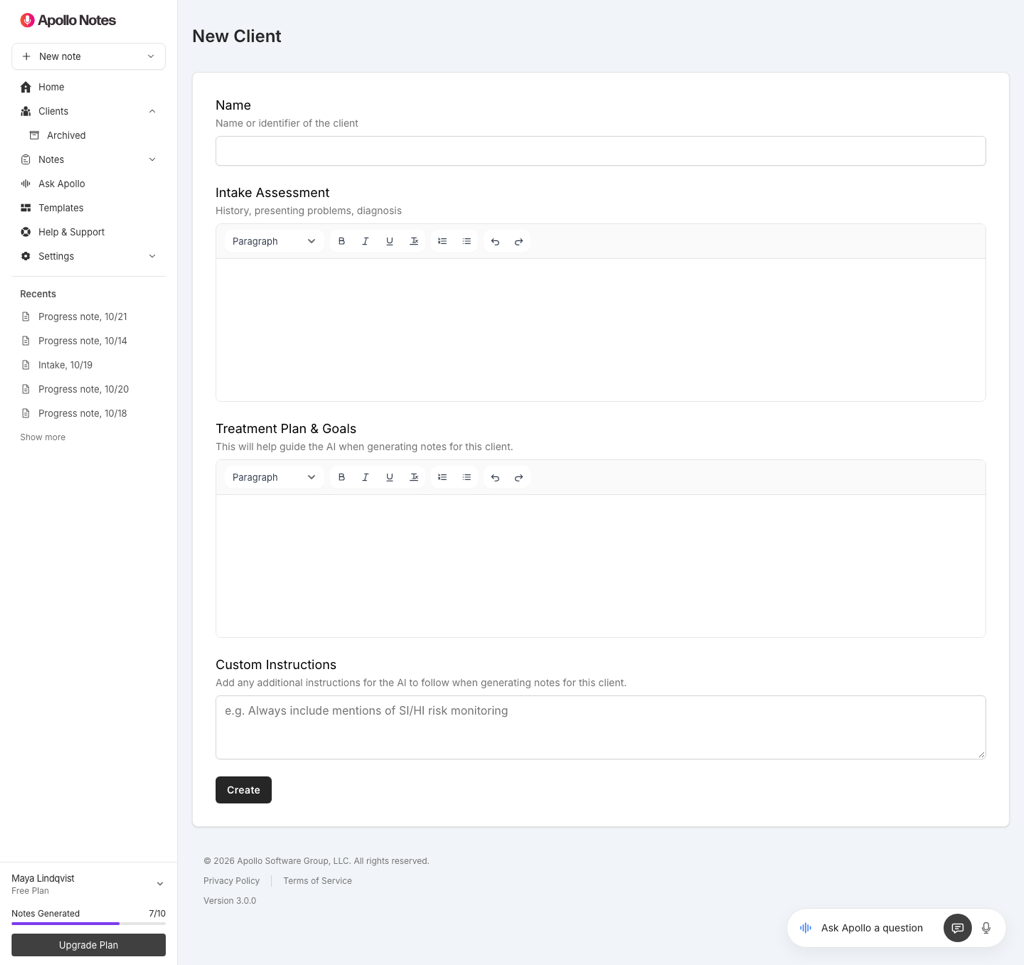
Click New client.
Enter the client Name / identifier.
(Optional) Add any of the following:
Intake Assessment
Treatment Plan & Goals
Custom Instructions
Click Create
Tip: If you prefer to minimize PHI, you can use an internal identifier (for example: initials + DOB month/year, or a practice-specific ID) instead of a full name.
Updating a client
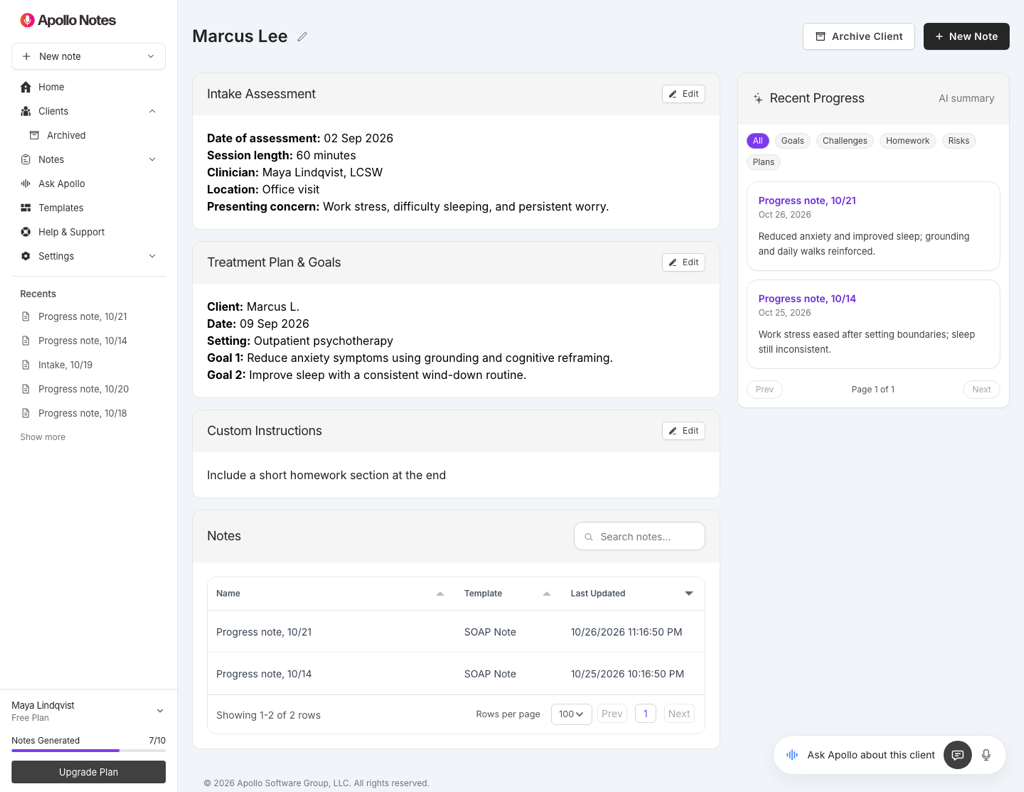
You can update client details by selecting a client and editing the individual sections (Intake, Treatment Plan, Custom Instructions) and save them as you go.
What to put in each field
Intake Assessment
Helpful for stable facts: presenting problem, key history, diagnoses, strengths, safety considerations, relevant psychosocial context.
Treatment Plan & Goals
Goals/objectives you want the AI to stay consistent with (for example: focus of treatment, target symptoms, coping skills, measurable goals).
Custom Instructions
Keep this short and specific (less than 800 characters is ideal). Long or overly complex instructions can reduce output quality.
Linking notes to a client
There are two ways to link notes to a client:
Option 1: Select a client while creating a note
Start a new note (for example, a Progress Note).
In the right-side Note Settings panel, find Client.
Click the Client field to open the client picker.
Search and select the client, then click Continue.
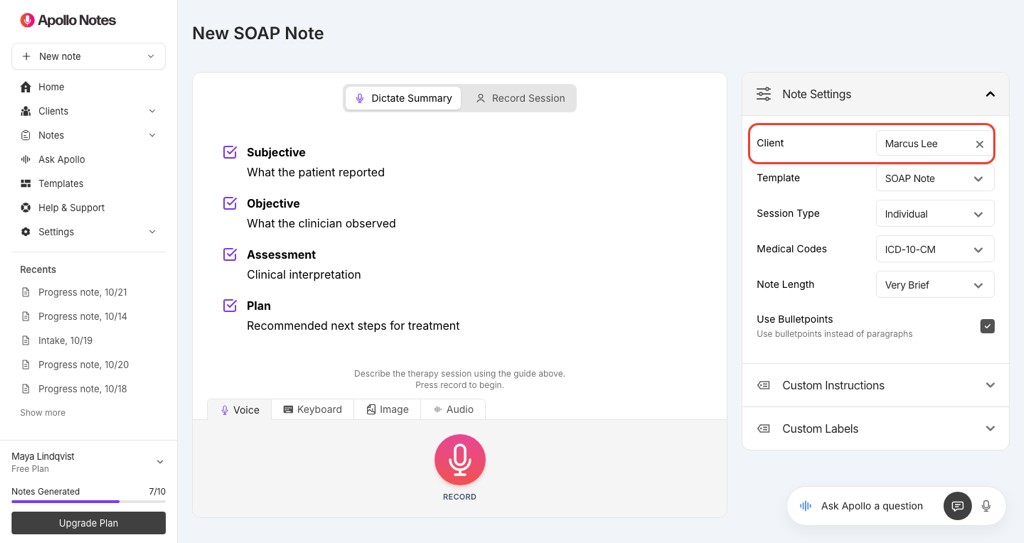
To remove the client from the note settings, click the X next to the selected client name.
Option 2: Start a note from the client profile
Open a client from the Clients page.
Click New Note.
This starts a new Progress Note with that client already selected.
Viewing notes (and recent progress) for a client
On a client profile, you’ll see:
Notes: a table of saved notes linked to that client (click a note to open it).
Recent Progress (AI summary): an at-a-glance timeline built from your most recent saved notes, highlighting items like goals, challenges, homework, risks, and plans.
Important: AI summaries are helpful for review, but they can be imperfect. Always verify clinical details before using them for documentation.
Deleting a client
You can delete a client from the Clients list, but Apollo Notes prevents deleting clients that already have saved notes linked to them. If you no longer work with a client, archive them instead. Their notes stay linked, and you can restore the client later.
If you need to remove a client that has notes, you’ll first need to delete the saved notes associated with that client.
Best practices
Keep client instructions concise: A few clear bullets beats a long block of text.
Use Clients for stable context: Intake history and treatment goals tend to help the most.
Review before you paste: Client context can improve consistency, but you’re still responsible for accuracy of the final note.
Consider identifiers: If your workflow requires minimizing PHI, use an internal naming convention instead of full legal names.
Prepare for a session with Ask Apollo
Open a client profile, then select the floating Ask Apollo assistant. The client’s name appears at the top of the panel. Type a question or choose Voice to talk.
“Give me a quick briefing before the next session.”
“What homework did we agree on last time?”
“How has this client progressed toward their treatment goals?”
“Find the session where we discussed sleep.”
Open Sources on an answer to review the records Apollo used. Keep the intake and treatment plan current so the answers have useful context.