
Saved Notes
Open Notes in the sidebar to find your notes, continue a draft, or reopen a finished note. You can organize notes with tags and copy or export them when they are ready.
Saved notes should still be reviewed before they are copied, exported, or added to a clinical record. Check clinical details, diagnosis language, risk content, medical code suggestions, and the plan for accuracy and fit.
Save a Note
After Apollo creates a note, review the draft in the editor. When the note is ready to keep, select Save.
Apollo asks you to enter a note name. Use a name that will make the note easy to recognize later, such as the client identifier, date, session type, or document purpose.
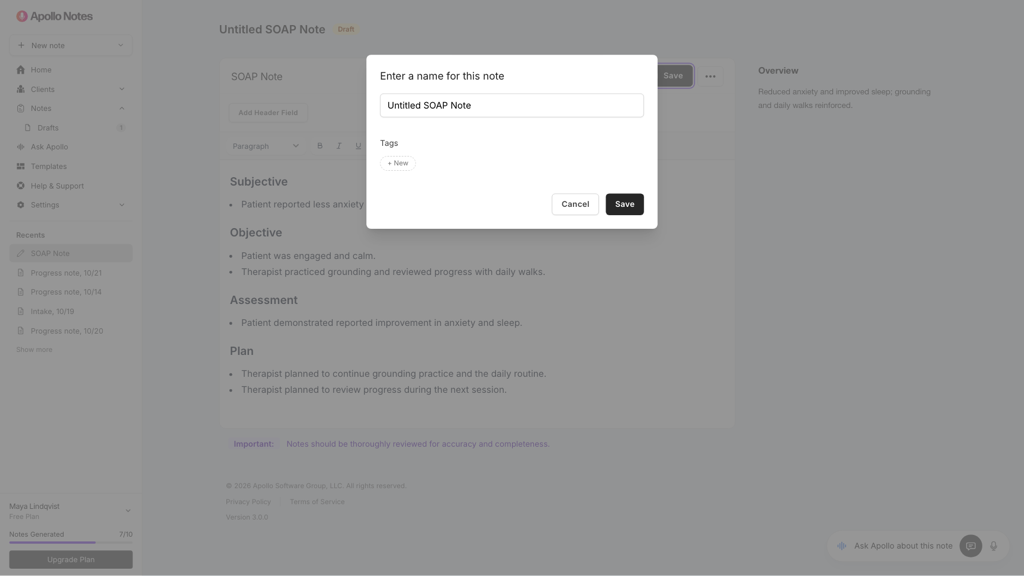
While saving, you can also add tags:
Select one or more existing tags.
Select + New to create a new tag.
Type the new tag name, then confirm it.
Select Save.
Tags are optional, but they are useful when you want to group notes by topic, workflow, payer, location, documentation type, or another system your practice uses.
Open Notes
Open Notes from the sidebar to view your saved note list.
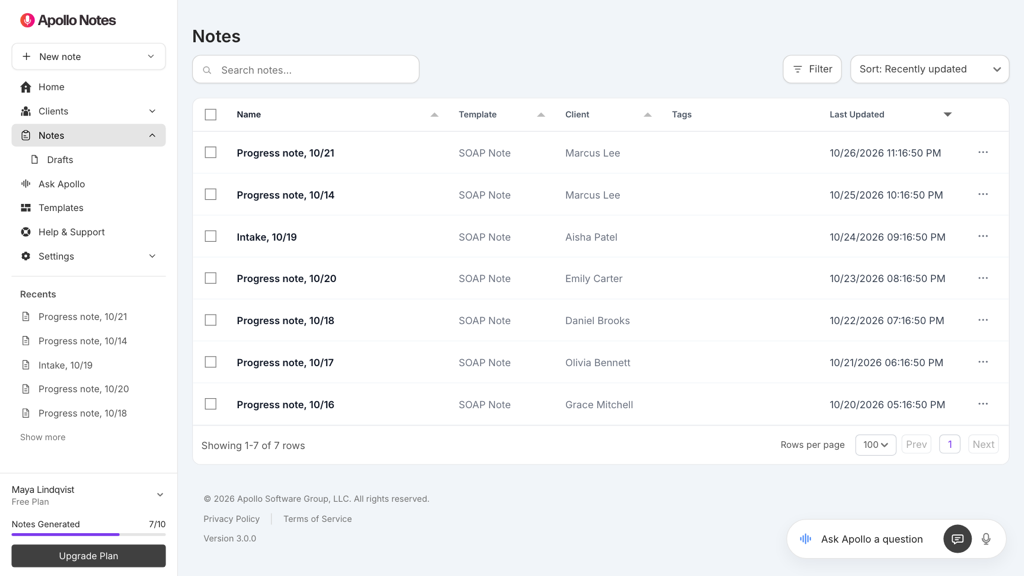
The table shows:
Name: the saved note name.
Template: the document template used for the note.
Client: the client linked to the note, if any.
Tags: any tags attached to the note.
Last Updated: when the note was most recently saved.
Select the note row, or open the ... menu on the row and choose Open note to open a saved note.
Use Filter to show all notes or only drafts. When you have unfinished drafts, a reminder above the table links to them with View drafts.
Edit a Saved Note
Open a note to read it or make changes in the editor. Select Save when you finish editing a saved note.
To edit note content:
Open Notes.
Select the note you want to edit.
Make your changes in the editor.
Select Save.
Apollo saves the updated content and updates the note’s last updated date.
To edit the note name or tags, use the edit option near the saved note title. You can rename the note, add tags, remove tags, or create a new tag from the note details modal.
Delete Notes
Notes supports deleting one note or multiple selected notes.
To delete one note:
Open Notes.
Find the note in the table.
Open the ... menu on the row and choose Delete note.
Confirm the deletion.
To delete multiple notes:
Open Notes.
Select the checkbox for each note you want to delete.
Select the delete button above the table, such as Delete 3 notes.
Confirm the deletion.
If every note in the table is selected, Apollo warns that you are about to delete all notes in your collection.
Deleted notes are permanently removed from Apollo and cannot be recovered from the app. Before deleting, make sure the note has already been copied, exported, or backed up somewhere else if you still need it.
Use Tags
Tags help you organize saved notes without changing the note content. A note can have more than one tag.
You can add tags when you first save a generated note or later from the saved note details modal.
Common tag examples include:
Documentation type, such as Intake or Discharge.
Clinical focus, such as Anxiety or Trauma.
Workflow status, such as Needs review or Ready for EHR.
Practice category, such as Telehealth, Group, or Supervision.
Keep tags short and consistent. A small set of clear tags is usually easier to use than many near-duplicate labels.
Filter by Tag
On the Notes page, tag pills appear in the table. Select a tag pill to filter the note list to notes with that tag.
Saved note tags may also appear under Notes in the sidebar. Select a tag there to open the filtered note list.
When a tag filter is active, Apollo shows the selected tag above the table. Select the x on that tag badge to clear the filter and return to all saved notes.
Search and Sort Notes
Use the search field on the Notes page to find notes by note name or template. Search updates the table as you type.
Use the sort menu to change the table order. Available sort options include:
Recently updated
Oldest updated
Name A-Z
Name Z-A
Template A-Z
Template Z-A
Client A-Z
Client Z-A
Apollo remembers your selected Notes sort preference for future visits.
Edit or Delete Tags
When saved note tags appear under Notes in the sidebar, each tag has an edit option.
Use tag editing to:
Rename a tag.
Change the tag color.
Delete the tag.
Deleting a tag removes it from your tag list and detaches it from any notes that used it. It does not delete the notes themselves.
Copy a Note
Use Copy in the editor when you want to move note content into an EHR, document, message, or another system.
For standard generated notes, Apollo copies the note text from the editor. For imported Word templates, Apollo copies the completed template field content in a readable text format.
After pasting into another system, review the pasted text. Formatting can vary between EHRs and document editors, so confirm headings, bullet points, spacing, and any copied fields before finalizing the record.
Export a Note
Apollo can export notes in different formats depending on the template type.
For standard generated notes, open the more menu and choose Download PDF.
For notes created from imported Word document templates, use Word to download the completed .docx document.
Review exported files before uploading them to an EHR or sending them elsewhere. Confirm that the correct client, date, template, clinical content, and formatting are present.
View Transcripts
Choose Show Transcript from the editor’s more menu to review the source text linked to the note. This helps you check details against the dictation or session transcript.
When a note has a linked transcript, you can review it after reopening the note too.
Transcripts can contain speech recognition errors, speaker attribution issues, or details that should not be included in the final clinical record. Use the transcript as source context, then rely on your review of the final note before saving, copying, or exporting.
Download Recordings
When an audio recording is available in the current editor workflow, the more menu includes Download Recording. This option is mainly used before leaving a recording or transcription workflow, especially if you need to keep a local copy after an upload or transcription problem.
Follow your professional, legal, workplace, and client consent requirements for handling therapy recordings.
Regenerate a Note
For newly generated notes that have not been opened as saved notes, the more menu may include Regenerate Note.
Regenerating creates a new draft from the same source material and settings. If you have edited the current draft, Apollo warns that regenerating will overwrite your changes.
Save, copy, or export any edits you want to keep before regenerating. Once a regenerated draft replaces the current text, unsaved edits are not recoverable from that editor state.
Continue a draft
Apollo keeps generated notes as drafts and saves your draft edits as you work. Look for Draft saved in the editor before you leave. If you see Save failed, keep the page open and check your connection.
Expand Notes in the sidebar and choose Drafts. Open a draft to continue reviewing it, then select Save to give it a name, add tags, and include it in the client’s saved note history.
Review a note with Ask Apollo
With the note open, select Ask Apollo. Ask a question about the text or request a change, such as “Make the assessment more concise.” You can select a passage first to focus the edit on that text.
Read the proposal, then select Apply changes or Cancel. Save the note when the revised text is ready.