
Introduction to Apollo Notes

Welcome to Apollo Notes! You can record a session, dictate a quick summary, or type rough notes. Apollo turns that information into a draft you can review, edit, and save.
Set up your account
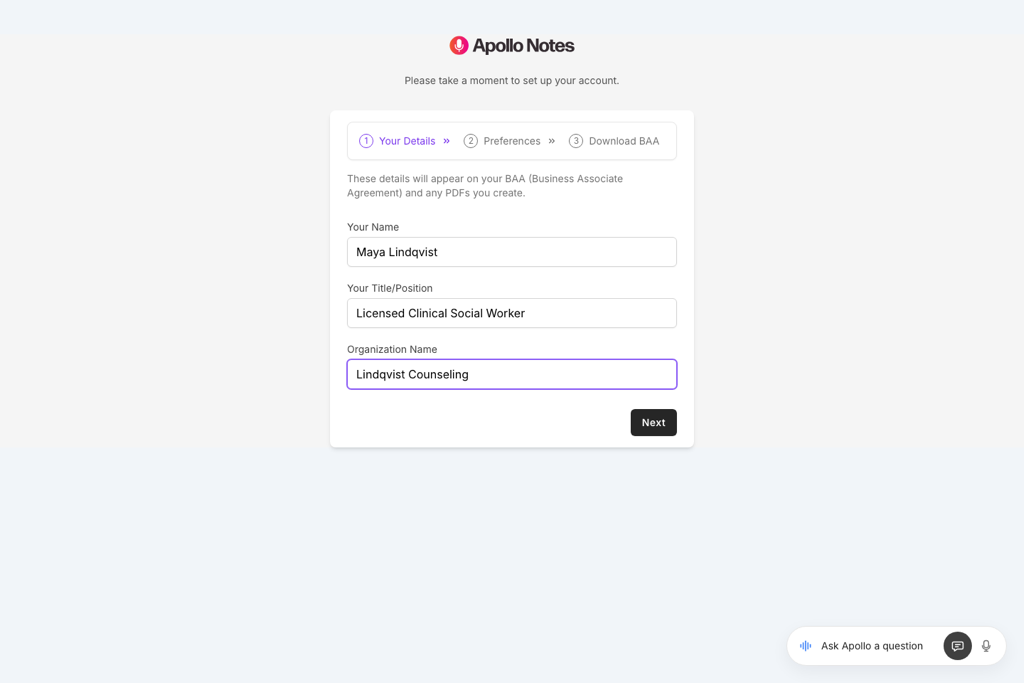
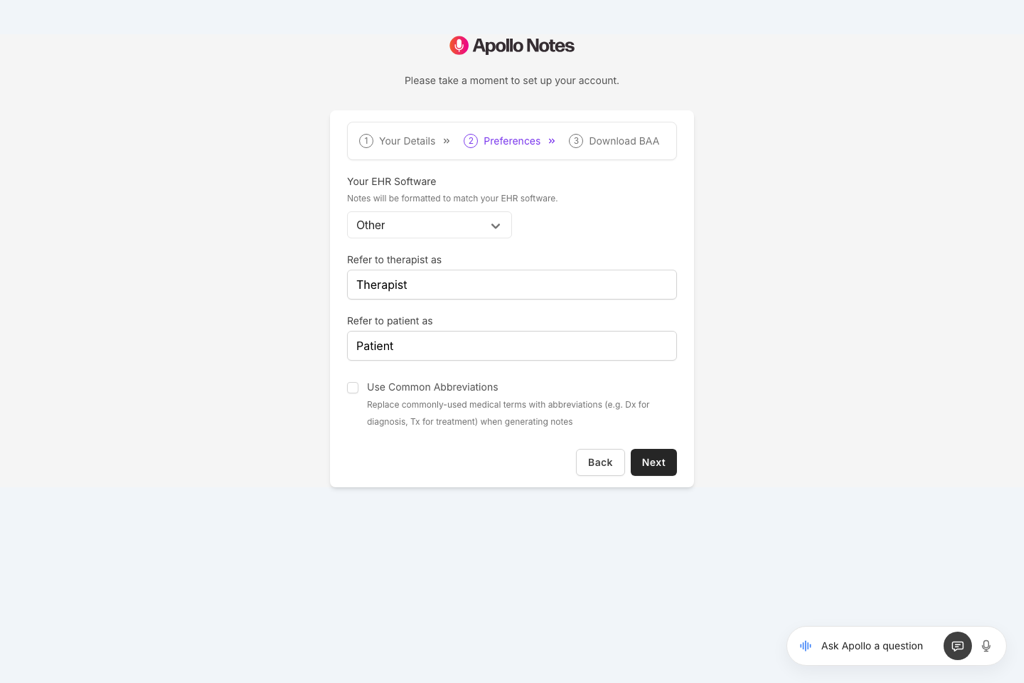
When you first sign in, enter your name, title, and organization details. Then choose your EHR and the labels you want Apollo to use for the therapist and client. You can also choose common clinical abbreviations.
Your label preferences help the note use your practice’s wording. For example, you can choose “Clinician” and “Client.” Common abbreviations shorten familiar clinical terms, such as Treatment to Tx, Diagnosis to Dx, and History to Hx. You can adjust these preferences when creating a note.
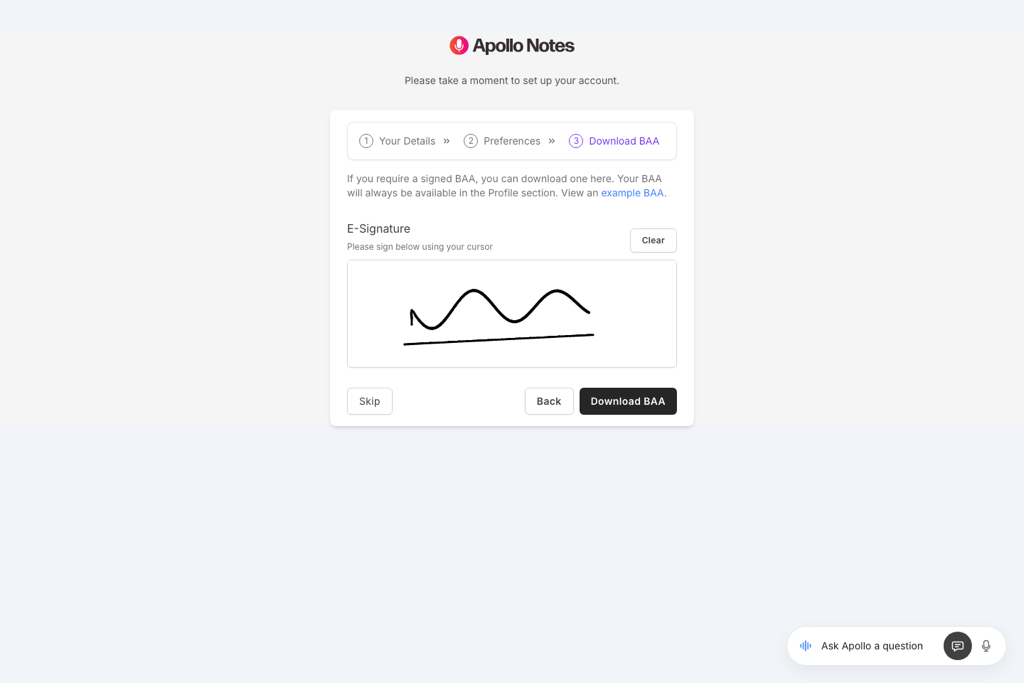
The final setup step lets you sign and download a Business Associate Agreement (BAA). You can also download it later from Settings > My Profile.
Set up your microphone
Find a quiet place and check that your browser can use your microphone. Your laptop or phone microphone can work for a spoken summary. Speak clearly and keep the microphone close enough to hear you.
Choose a quiet room and reduce background conversations, traffic, and other noise.
If you use an external microphone, place it about a fist’s distance from your mouth for dictation. Move it back if the sound becomes distorted.
Check the microphone input level on your device. Your voice should be clear without peaking or distorting.
For a full session, place the microphone where it can hear everyone. For telehealth, choose Browser Tab under Record Session to capture shared audio together with your microphone.
Create your first note
Select New note at the top of the sidebar, then Progress Note.
Open Note Settings and choose a template such as SOAP, DAP, BIRP, or GIRP. Select a client and session type if needed.
Under Dictate Summary, choose Voice to speak your summary or Keyboard to type it.
Include the session focus, what you did, how the client responded, and the plan.
Select Create Note. Apollo transcribes your dictation and creates a draft.
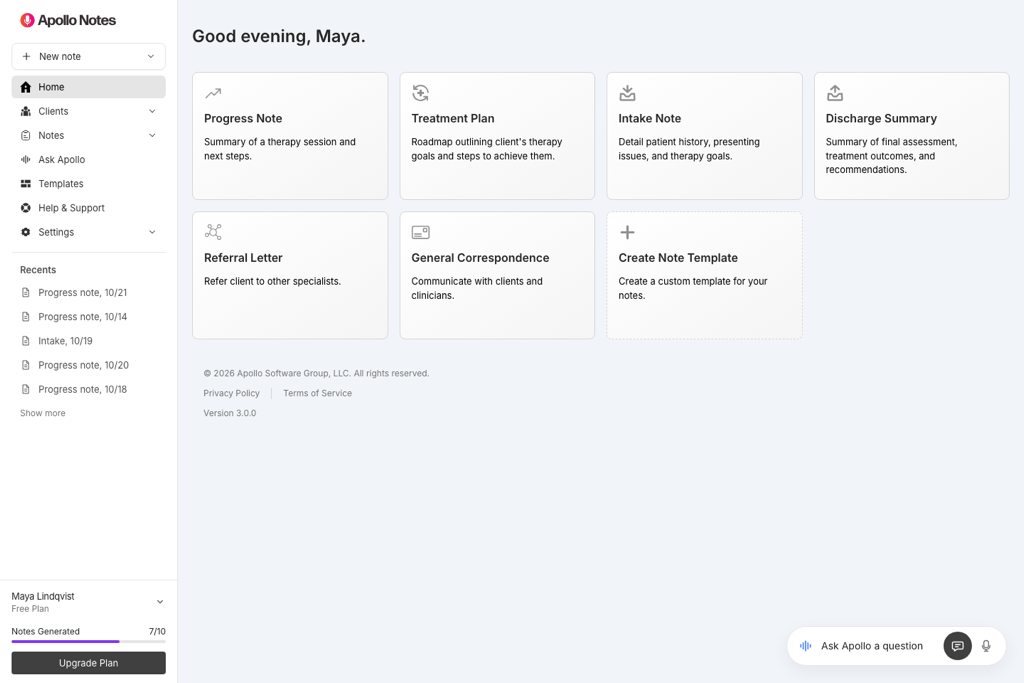
You can also create treatment plans, intake notes, discharge summaries, referral letters, correspondence, and notes from your own templates. Home shows the document types and custom templates available to you.
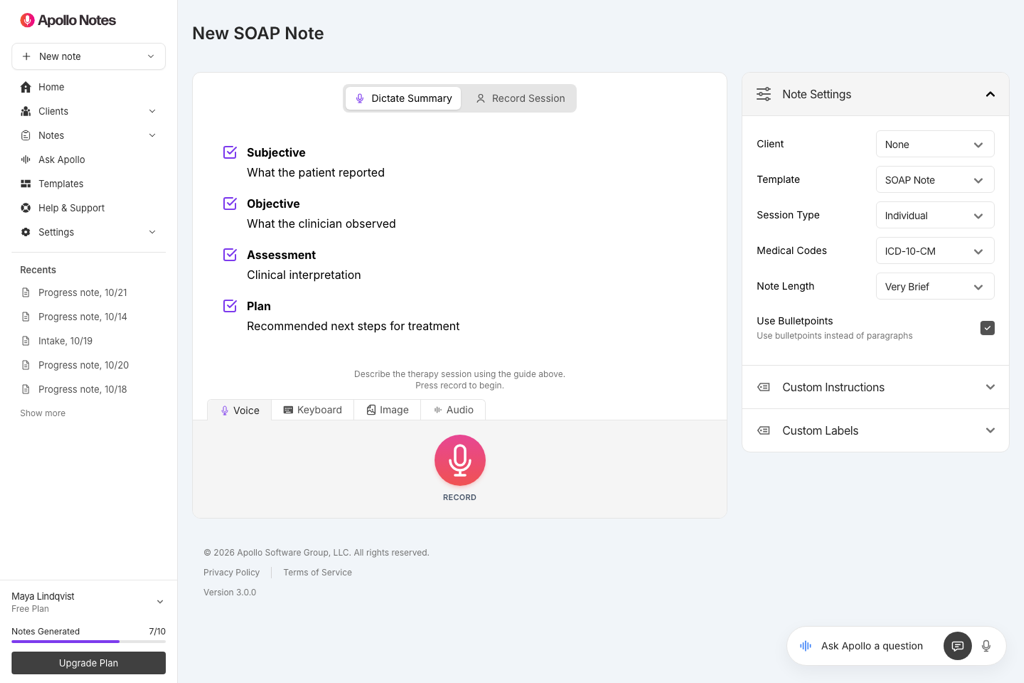
The template guide above the input area shows the sections to cover in your summary. Open Note Settings to choose how Apollo writes the draft:
Client: select a profile so Apollo can use the client’s intake details, treatment goals, and standing instructions.
Template: choose a progress note format such as SOAP, DAP, BIRP, or GIRP, or a custom template.
Session Type: choose Individual, Couple, or Group to match the session.
Medical Codes: choose None, ICD-10-CM, ICD-11, or DSM-5-TR. Check any suggested codes against your clinical assessment before using them.
Note Length: choose Very Brief, Brief, Auto, or Extended. Use Auto to let Apollo choose the amount of detail.
Use Bulletpoints: choose bullet points instead of paragraphs.
Custom Instructions: add short guidance for this note, such as “Keep the Plan section concise and include the agreed homework.”
Custom Labels: choose how the therapist and client are named in the note.
Use Common Abbreviations: use familiar shortened terms such as Dx for diagnosis and Tx for treatment.
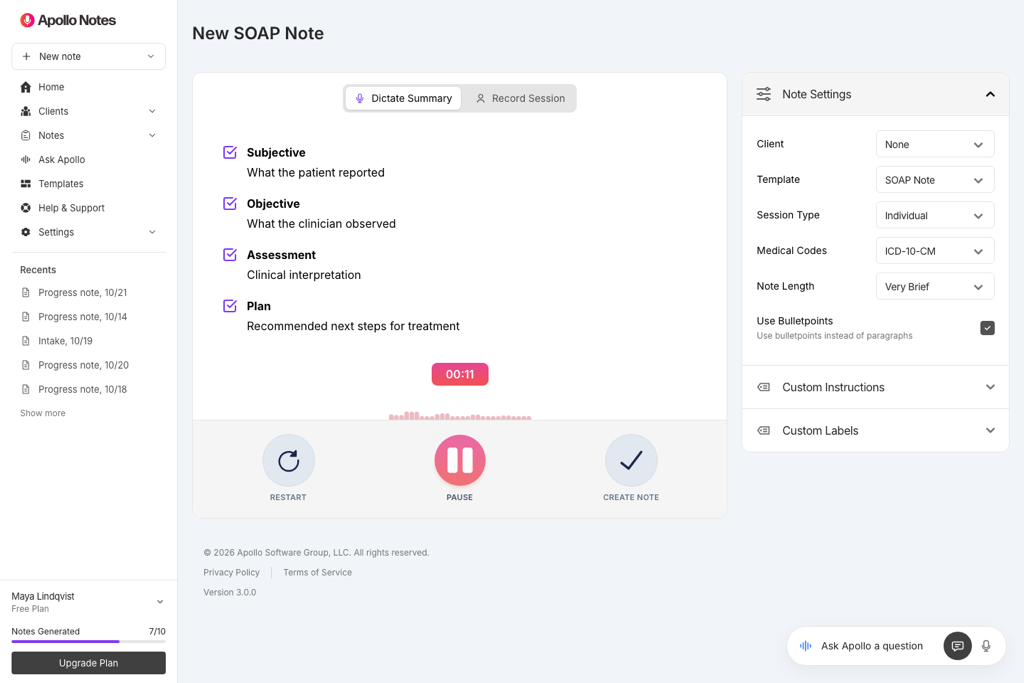
Under Dictate Summary, select Voice and press the microphone button to start. The timer shows how long you have recorded, and the audio visualizer helps you check that the microphone is picking up your voice.
Pause: stop recording for a moment and resume when you are ready to add more.
Restart: clear the current dictation and begin again.
Create Note: finish recording, transcribe your summary, and generate the draft.
Speak naturally. You can correct yourself as you go, and Apollo uses the summary to write the note in your chosen format. Check that the final draft reflects the correction you intended.
Review and save your note
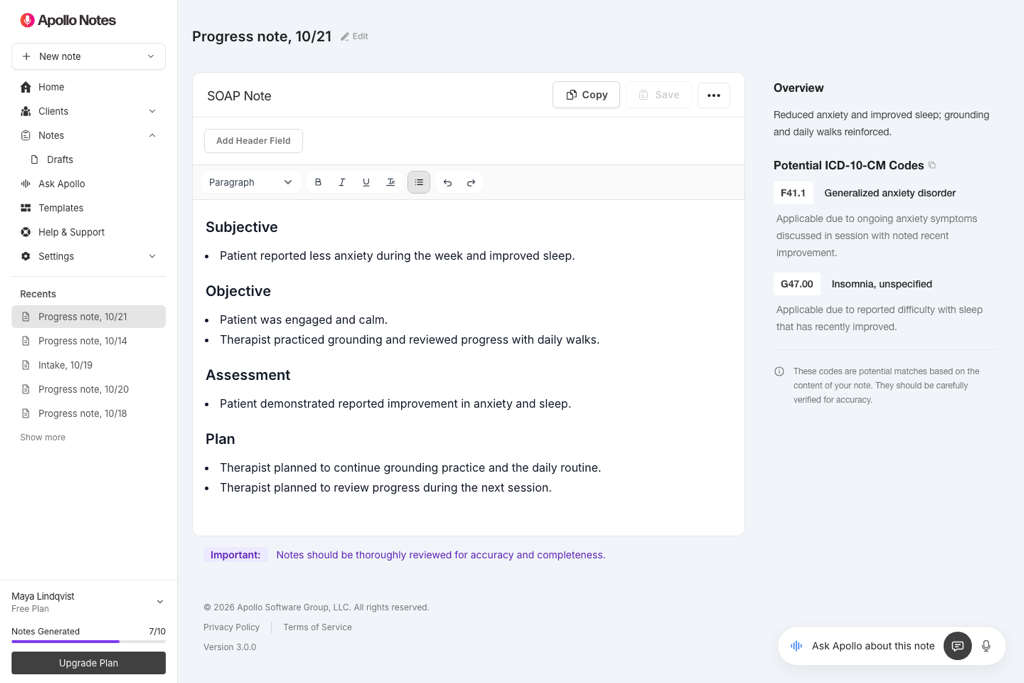
Read the draft and make any changes in the editor. Check the clinical facts, risk information, diagnosis suggestions, and plan before using it in your record.
You can edit the text directly and use the editor toolbar for headings, bold, italic, underline, and bullet lists. The panels beside the note show the summary, transcript, and any available medical code suggestions or insurance checks. Use them to check the draft against your source information.
Open Ask Apollo to ask about the draft or request an edit. For example, “Make this section shorter.” Review the proposal and select Apply changes to use it.
Generated notes stay in Notes > Drafts while you work. Look for Draft saved to check that your edits are saved. When the note is ready, select Save, enter a name, and add optional tags.
When you reopen a saved note and make changes, select Save to keep those edits. Apollo warns you if you try to leave a saved note with unsaved changes. Notes are encrypted and remain in your account until you delete them.
Use Copy to paste the finished note into your EHR. You can also download a PDF from the more menu.
Where to go next
Get a step-by-step guide to creating notes.